

Quick start
Score Pilot is a match console for the game clock and scoring in team sports. You run the game from the 10” touchscreen or the physical buttons around it, and show it on a TV or LED screen over HDMI, on existing scoreboards over RS422 or the network, or in Sport In The Box.
From a new console to a running game in six steps. Each step links to the full description.
1. Connect the console
Section titled “1. Connect the console”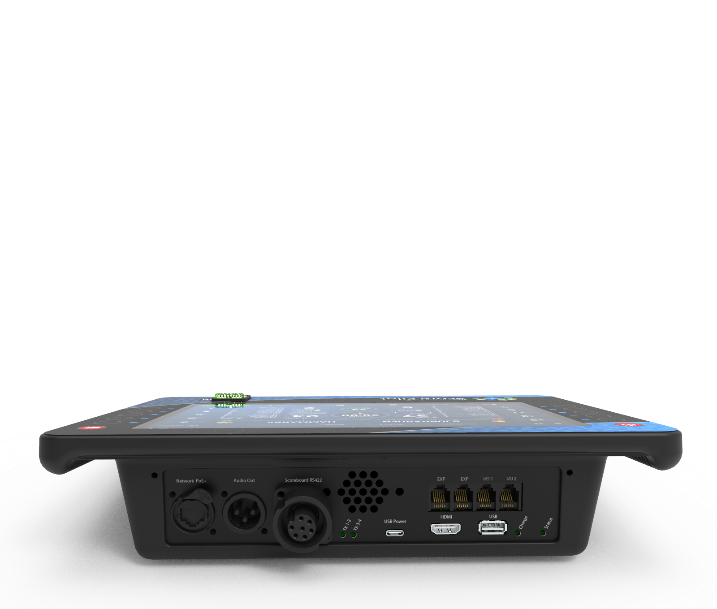
- Connect the cable to your scoreboard: a network cable, or the serial cable in the Scoreboard RS422 port. A TV or LED screen goes in the HDMI port.
- Connect power: a network cable with PoE+, or a USB-C PD charger (15 V 2 A or 12 V 2 A).
See Hardware for every port.
2. Turn it on
Section titled “2. Turn it on”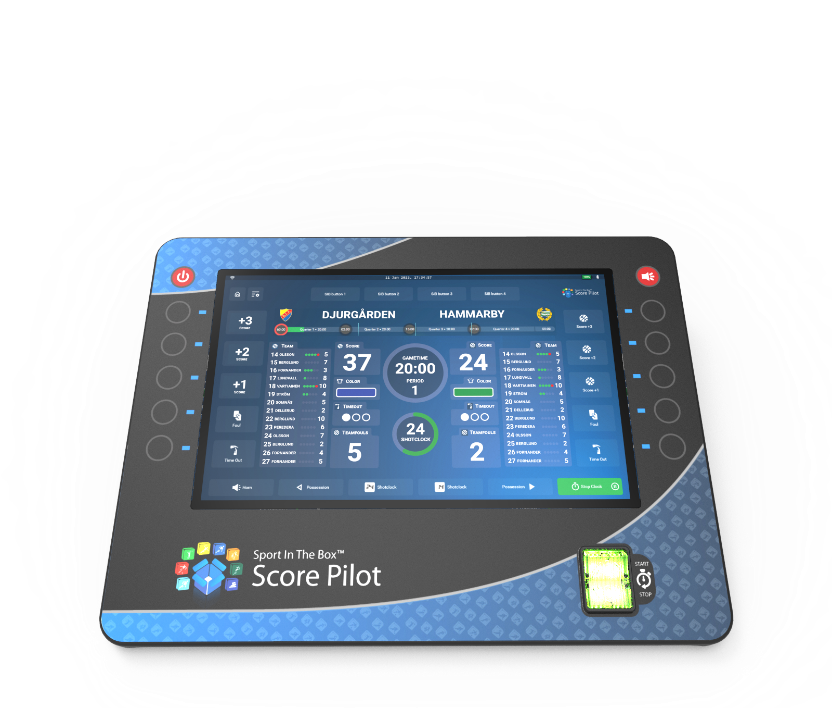
Press the power button once. The battery time remaining is shown in the status bar. The Charge LED is red while charging and green when the battery is full.
3. Choose where the game is shown
Section titled “3. Choose where the game is shown”A TV or LED screen on the HDMI port shows the scoreboard. For a scoreboard on RS422 or the network, or for Sport in the Box, add a data output under Settings → Data Outputs. See Connect to a TV or scoreboard.
4. Prepare your sport and teams
Section titled “4. Prepare your sport and teams”Every game is created from a sport configuration: a set of rules and settings for one sport. Create one under Settings → Sport Configurations and add your teams under Settings → Teams by Sport. See Sport configurations and Teams.
5. Create and start a game
Section titled “5. Create and start a game”On the Home Screen, press Create Game, choose the sport configuration, the home and away team and the start time, and press Create Game. Then press Start on the game in the games list. See Create a game.
6. Run the game
Section titled “6. Run the game”- Start and stop the clock with the start/stop switch: up starts, down stops. It is green while the clock runs, red when it is stopped and yellow during a pause.
- Add a score with +1. Penalties, timeouts and other actions have their own buttons on each side of the screen.
- When a period ends, the button in the bottom right corner shows the next period or pause. Press it to go on.
See The game screen and During a game.
- The rules and buttons for your sport: your sport’s page under Sports.
- Something not working: Troubleshooting & FAQ.