

Configuration of new game before start
Press Edit (the pen button) on a game in the games list to open the game setup. The first tab, This Game, shows a summary of the game and its settings.
A setting can be changed in two ways:
- Press a team, or one of the setting rows in the summary, as a shortcut straight to that setting.
- Or open its tab in the menu on the left, for example Home Team, Away Team, Game Settings or Period/Pause, and change it there.
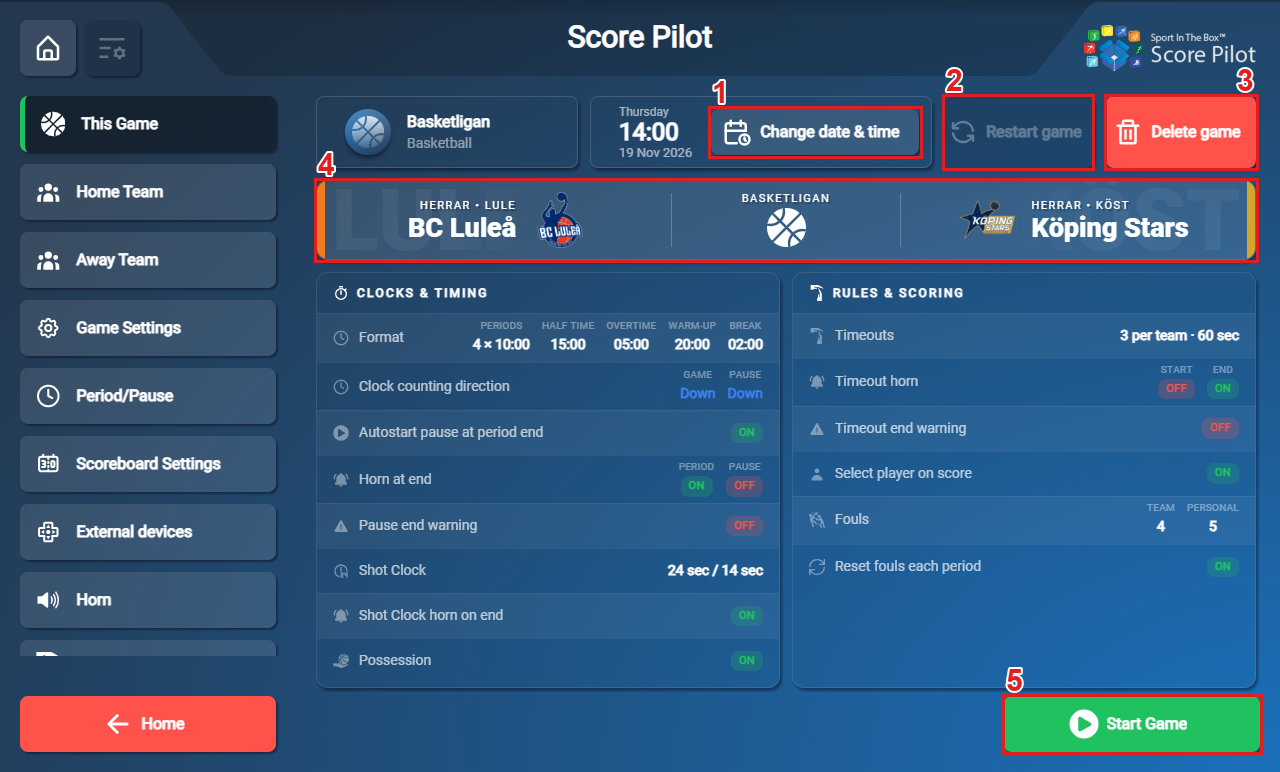
| Id | Name | Description |
|---|---|---|
| 1 | Change date & time | Moves the game to another date or start time. |
| 2 | Restart game | Clears all game data, such as clocks, scores, player statistics, timeouts and timeline, and starts the game over. Teams and settings are kept. Available once the game has been started. |
| 3 | Delete game | Removes the game from the games list. This cannot be undone. |
| 4 | Teams | Press a team to change the team, its name, logo or players. |
| 5 | Start Game | Starts the game and opens the Game Screen. Shows Resume Game when the game has already been started. |
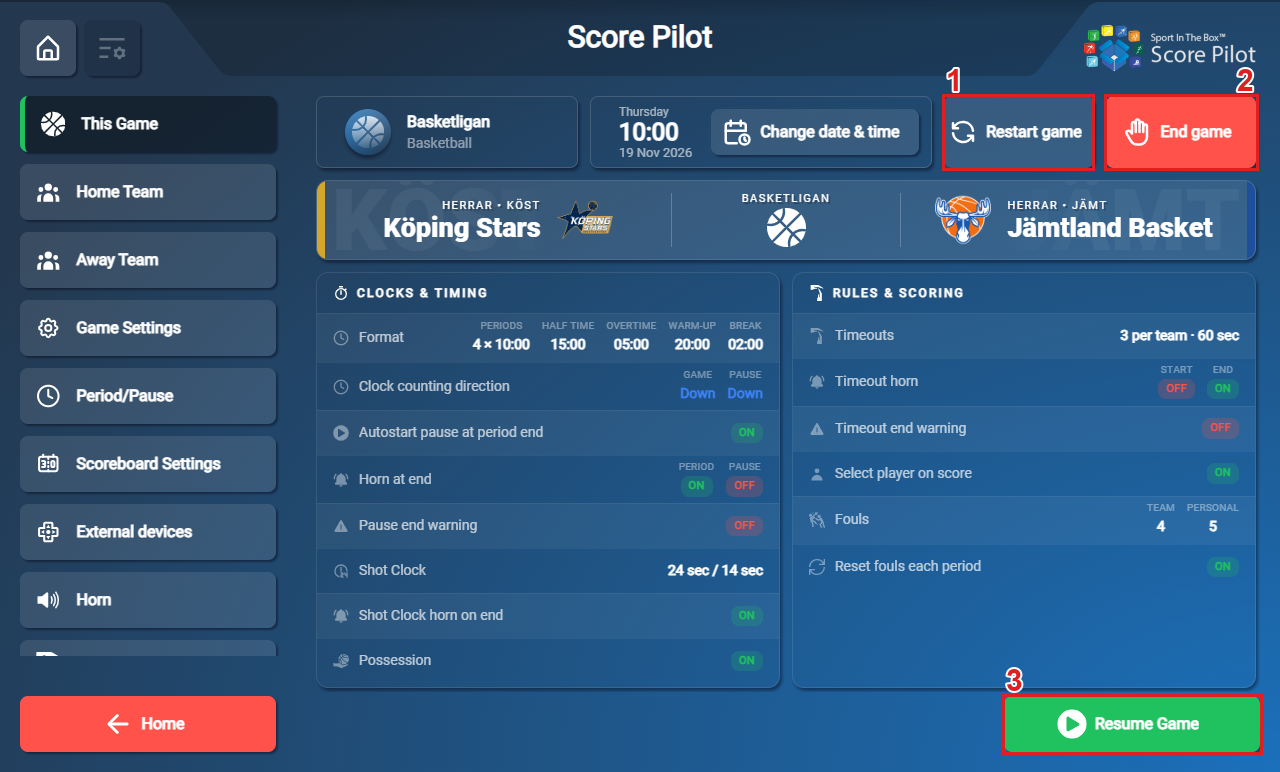
When the game setup is opened for the live game, Delete game is replaced by End game (2). End game closes the game: no more data is sent to the scoreboards, and the game stays in the games list with its score and time saved, so it can be resumed later. A live game must be ended before it can be deleted.
All sports have these tabs: Home Team, Away Team, Game Settings, Period/Pause, Scoreboard Settings, External devices and Horn. Depending on the sport, the menu also shows Penalties (Exclusions in water polo), Timeouts, Shot Clock (Serve Clock in volleyball), Play Clock and Sets.
Home & Away Team Settings
Section titled “Home & Away Team Settings”Setup the teams for this game.
Add players to the team, switch to a different team, update team names, or modify team colors.
Team names are separated into Club Name and Team Name, Club Name is the name sent on scoreboards.
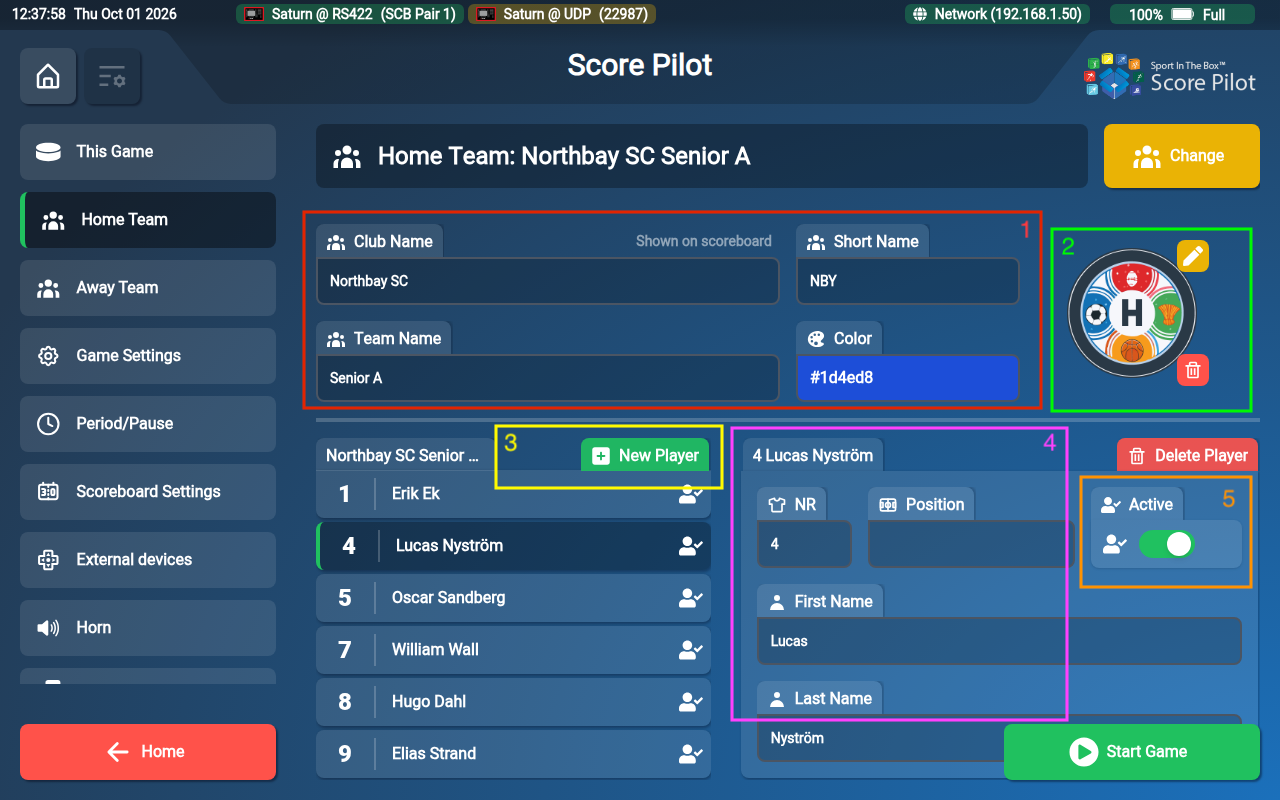
| id | Name | Description |
|---|---|---|
| 1 | Edit Team | Edit the team name, short name, or team color by clicking on the respective field and updating the information. |
| 2 | Edit Team Logo | Change the team logo by clicking the yellow Edit button and selecting a new logo. |
| 3 | Create a New Player | Add a new player to the team. |
| 4 | Edit Player Details | Edit a player's name, number, or position as needed. |
| 5 | Set Player to Active | Mark a player as Active to display them on the Scoreboard and in the Game Screen. |
Period / Pause
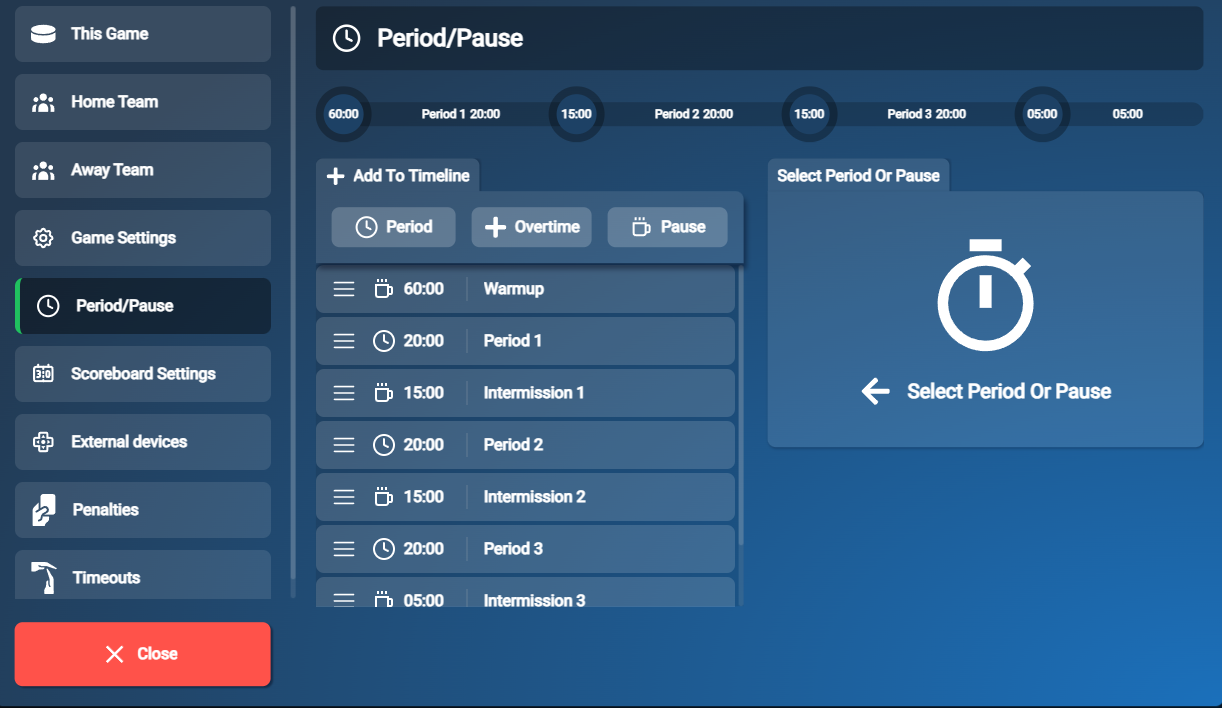
Section titled “Period / Pause”Setup the timeline for the game. Add or edit periods, pauses and overtimes.
By default, this is copied from the Sport Configuration, but it is possible to customize in each game created.
Period and Overtime are considered Game Time, meaning other clocks such as shot clock and penalties will be running if a Period or Overtime is running.
Pauses are not considered game time, and other clocks will be paused during a pause. Pauses are stopped with the physical Stop button and started again with Start on the screen or the physical button.
Horn Settings during pauses
Section titled “Horn Settings during pauses”Horns during pauses are set for each pause. Select a pause in the list to see its Horns, and press Edit to change them:
- Horn at end – sounds when the pause reaches 0.
- Horn 1 – turn on and tap the minutes and seconds to set how long before the end of the pause the horn sounds.
- Horn 2 – a second horn before the end of the pause, set in the same way.
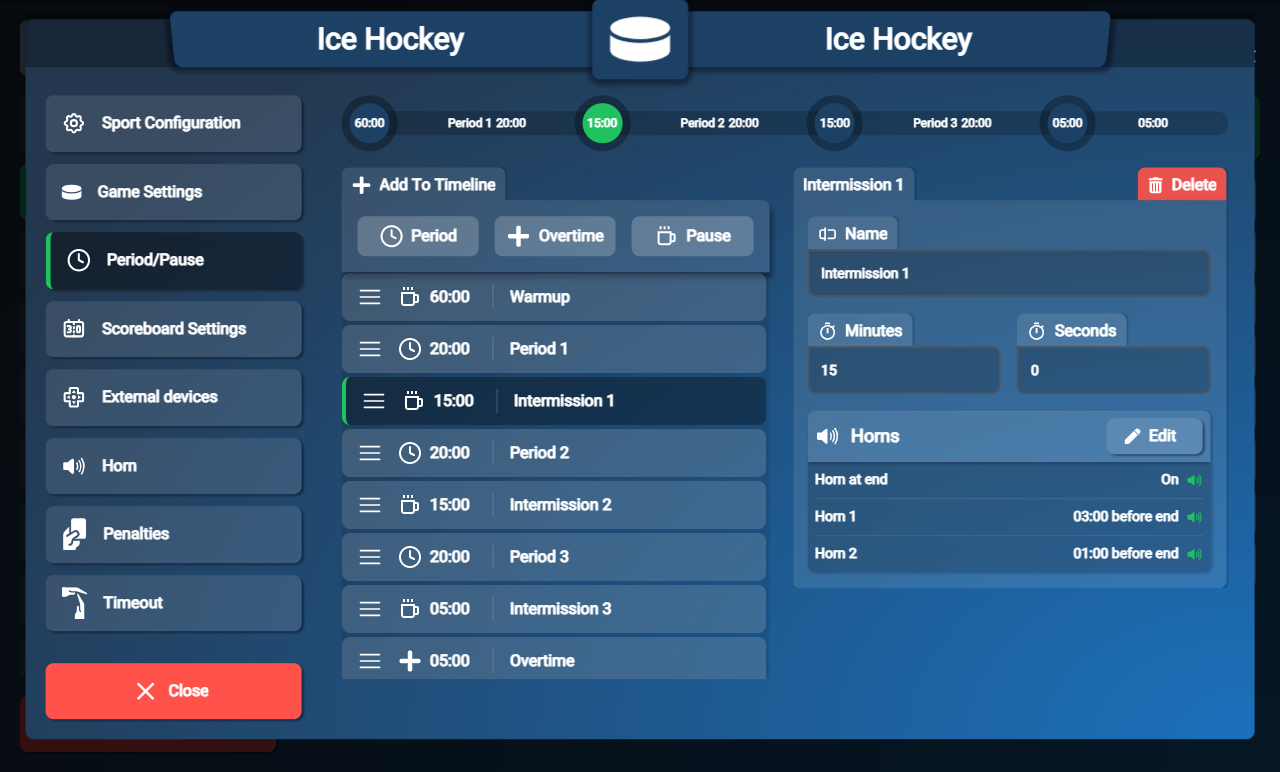
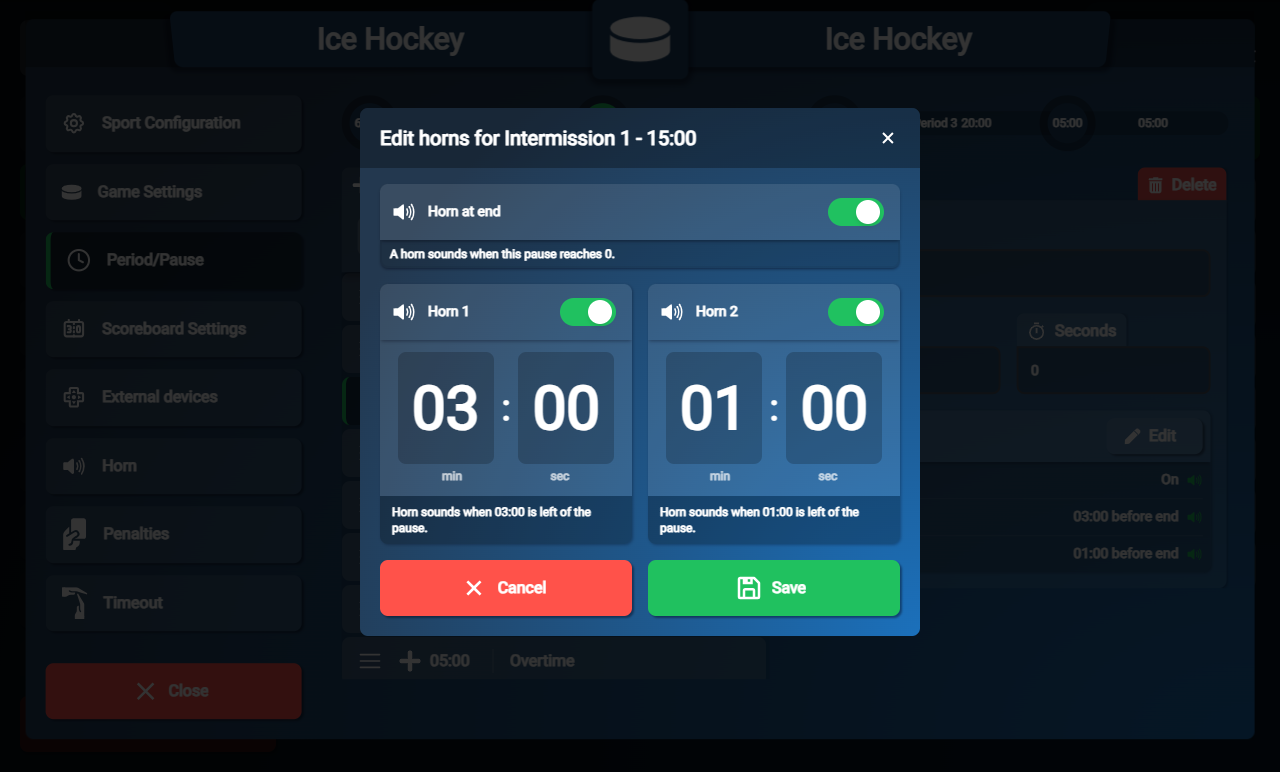
The time must be shorter than the pause. During the game, each horn before the end is marked on the clock, and a horn only sounds when the clock runs past it. How long and in which pitch the pause horn sounds is set on the Horn tab.
Scoreboard Settings
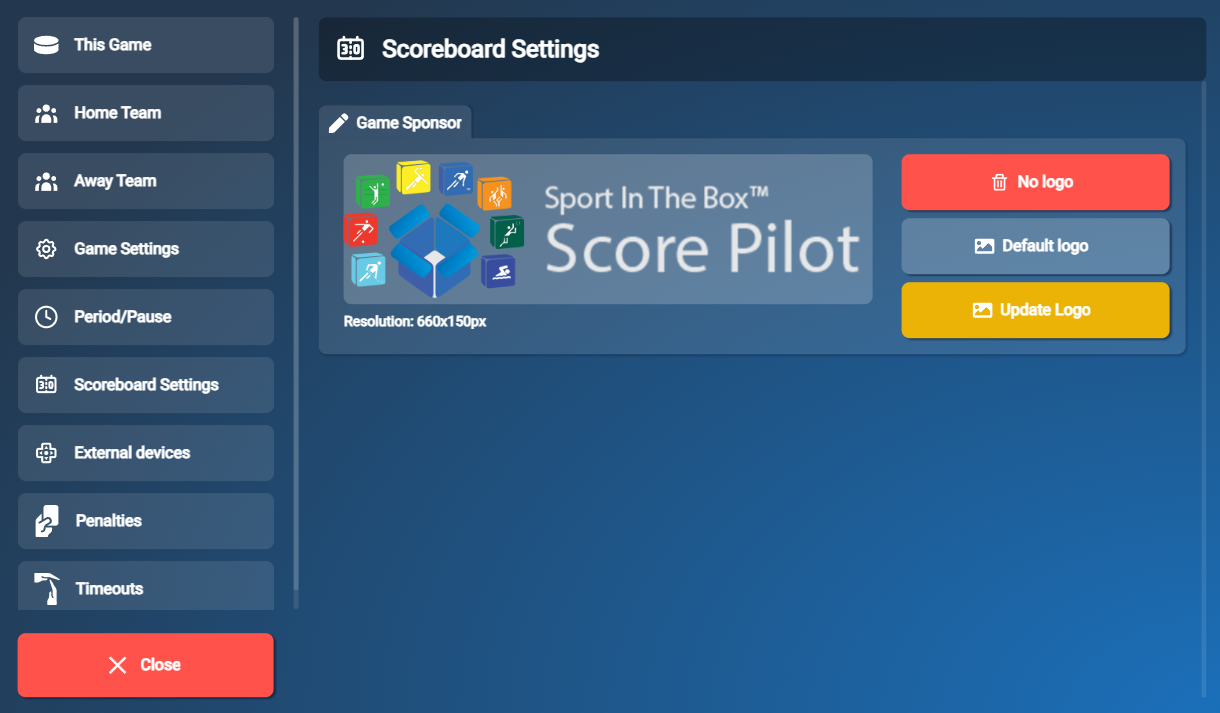
Section titled “Scoreboard Settings”If the match is displayed on the HDMI Scoreboard, or over network with the Score Pilot protocol, the Game Sponsor can be set in the Scoreboard Settings and shown on scoreboard.
Either update the logo, clear the logo by pressing No Logo or reset to the default Score Pilot logo. Logos are automatically scaled to match 660x150px.
External devices
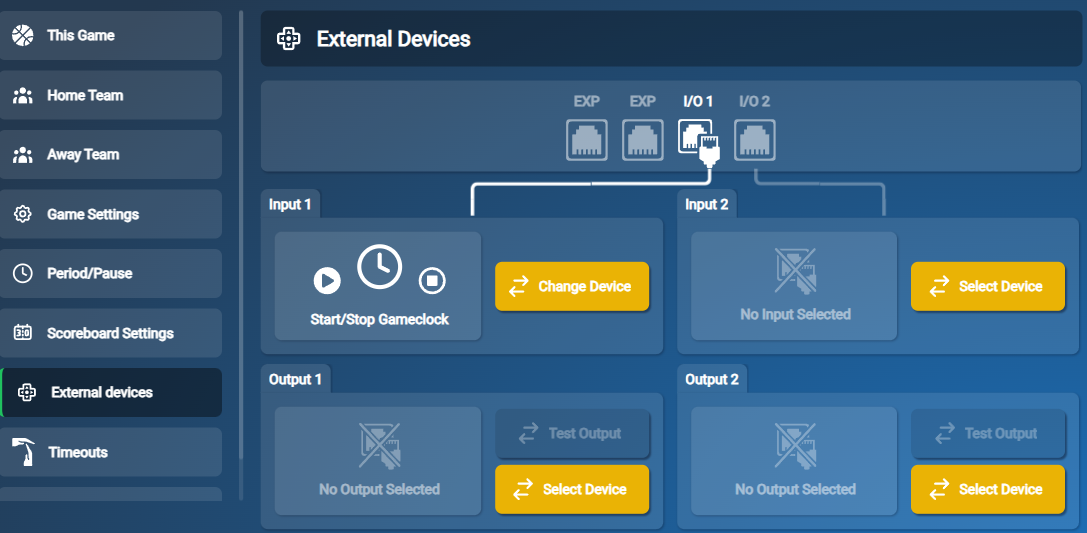
Section titled “External devices”Score Pilot has the option to connect two External input / outputs via the ports I/O 1 and I/O 2. Under the External Devices tab, it is possible to setup what each port should do.
Inputs
Section titled “Inputs”Start / Stop Game Clock – When connected, the external button allows for starting and stopping the game.
Reset Shot clock – When connected, the external buttons allow the shot clock to be restarted to one or the other of the two shot clock times.
By holding the button down, the shot clock is paused from running until the button is released again.
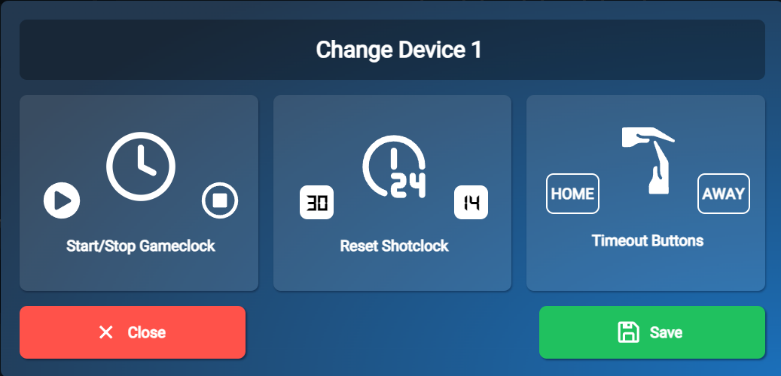
Timeout Buttons – When connected, one timeout button is available for each team, to be able to request a timeout. Starting a timeout is only possible when the team still has not used all their timeouts. When starting a timeout, the main clock is stopped, a timeout starts running, and horn sounds if that setting has been enabled.
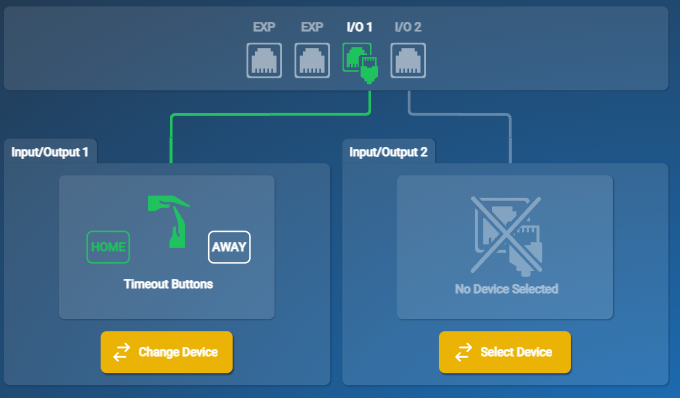
To check that the external inputs are connected properly, try holding down the button. The corresponding function should then be highlighted in green in the External Devices setup screen.
Outputs
Section titled “Outputs”Play Main Horn – Connect a horn to I/O 1 or I/O 2 and extend any horn signals sent to that output. Horn signals that are sent are, for example, the horn at the end of a period or when the horn button is pressed on the Score Pilot.
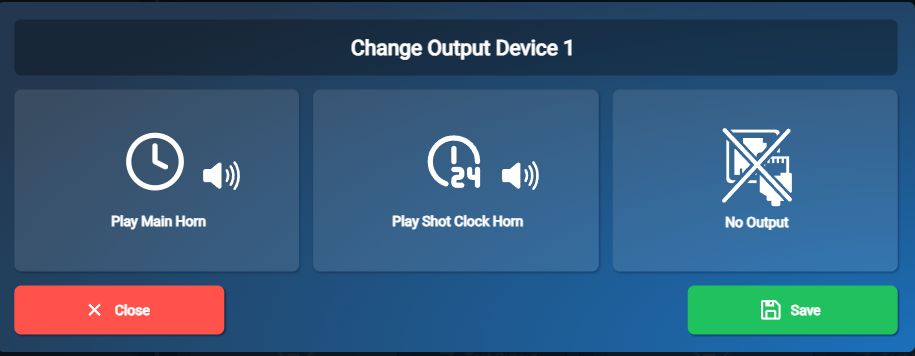
Play Shot Clock Horn - Connect a horn to I/O 1 or I/O 2 and extend any shot clock horn signals. All shot clock horn signals that are enabled in the settings for Shot Clock will be sent on the output. For example, when the shot clock ends.
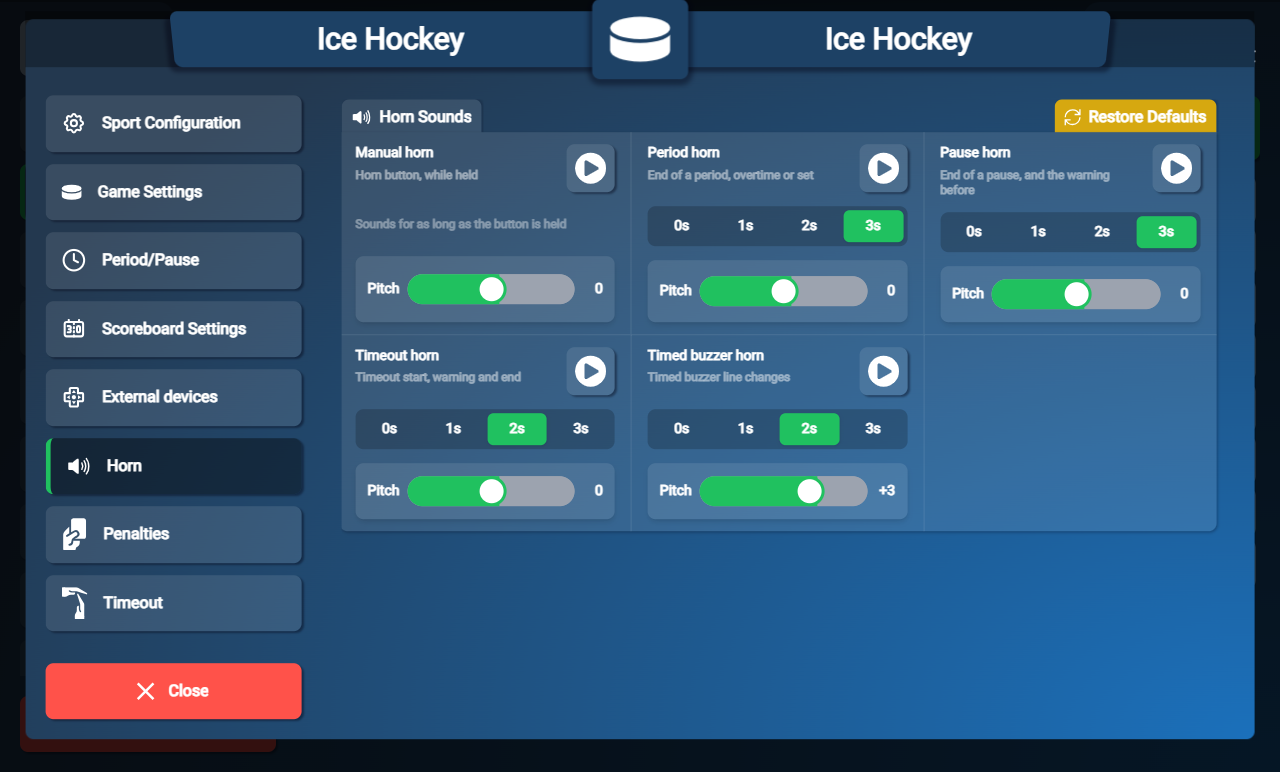
Set how each horn of the game sounds. There is a card for each horn:
- Manual horn – the horn button. Sounds for as long as the button is held.
- Period horn – end of a period, overtime or set.
- Pause horn – end of a pause, and the horns before the end.
- Timeout horn – timeout start, warning and end.
- Shot clock, Serve clock or Play clock horn – end of that clock, in sports that use it.
- Timed buzzer horn – timed buzzer line changes, when that setting is on.
For each horn, choose how long it sounds (0–3 seconds; 0 s turns the horn off) and its Pitch (−8 to +8). Press the play button on a card to test the horn. Restore Defaults puts back the default pitch and length of every horn. New games get the horn settings of their sport configuration.
Timeouts
Section titled “Timeouts”Set the length of timeouts, how many each team can take in this game, and the horns.
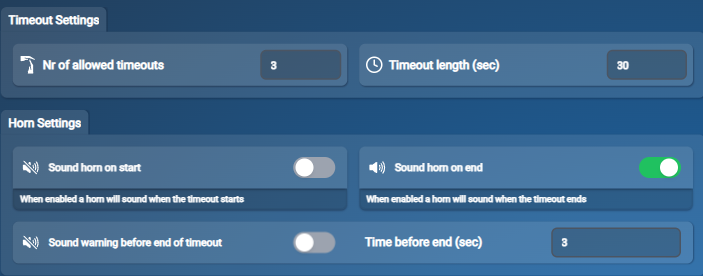
| Setting | Description |
|---|---|
| Nr of allowed timeouts | Set how many timeouts each team is allowed to take. Will be displayed in Game Screen and Scoreboards. |
| Timeout length (sec) | Set how long each timeout should be. Set the time in seconds. Minimum value is 0; maximum value is 999 seconds. |
| Sound horn on start | Activate playing a shorter horn sound on start of a new timeout. |
| Sound horn on end | Activate sounding horn at the end of the timeout. |
| Sound warning before end of timeout | Activate playing horn sound as a warning before the timeout ends. Set the time before end to play the sound with the setting Time before end (sec), maximum 99 seconds. |