

Game screen
The Game Screen is the main interface used to operate an active match. While each sport may include additional features or sport-specific controls, the elements described in this chapter are shared across all sports and function in the same way.
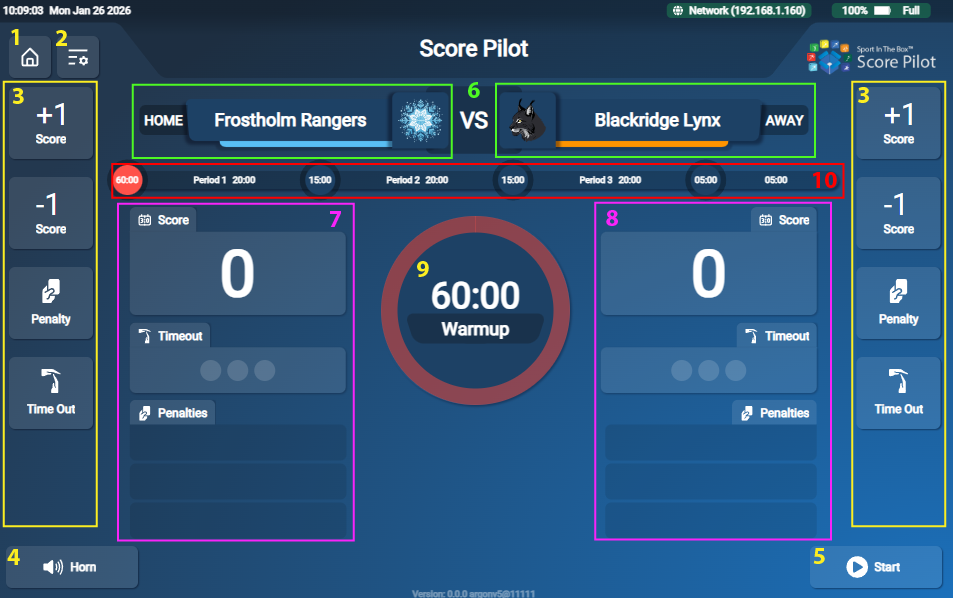
| Id | Name | Description |
|---|---|---|
| 1 | Home button | Takes you to the Home screen (current game will not be canceled) |
| 2 | Game settings | Opens up settings for the current game |
| 3 | Quick action buttons | Each side of the screen includes quick action buttons for the selected teams. All sports include Score buttons, used to adjust the team’s score during the match. Additional buttons may appear depending on the sport configuration, such as Timeout, Penalty, Card, or other sport-specific actions. |
| 4 | Horn button | A manual horn button is available in the bottom left corner. |
| 5 | Start/Stop Control Next period/pause | The Start/Stop button is located in the bottom right corner. This button starts and stops the main match clock. When period has ended this will be used to go to next period/pause. During a running pause the button shows the next period; the pause itself is stopped with the physical Stop button. |
| 6 | Teams | The Home and Away teams are shown at the top of the screen, displaying the name, color, and logo for each team. |
| 7 | Home team data | Showing data for the home team, touch to edit |
| 8 | Away team data | Showing data for the home team, touch to edit |
| 9 | Game Clock | The game clock is displayed in the center of the screen. It shows the current match time and the active segment (Period, Pause, Overtime) with its corresponding title. The clock counts up or down depending on the sport rules and the active configuration. |
| 10 | Game timeline | Shows all period and pauses in the current game |
Adjusting the game time
Section titled “Adjusting the game time”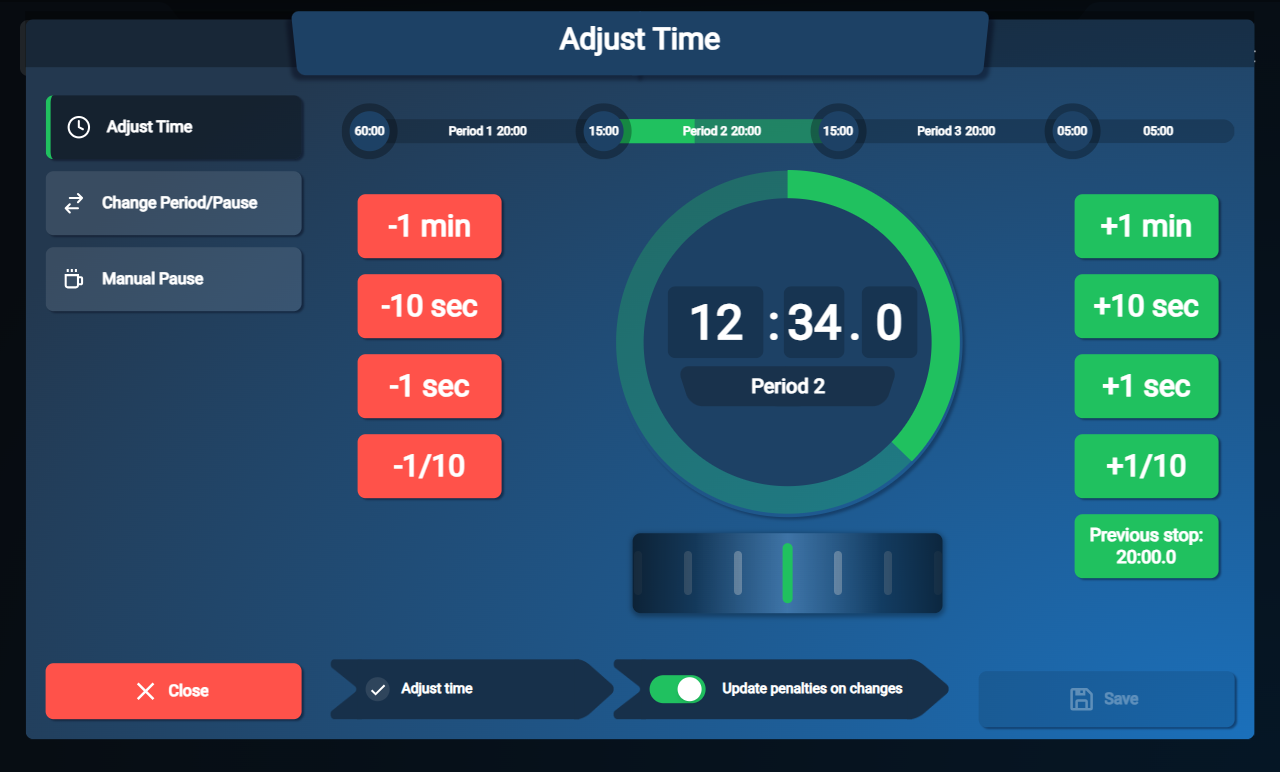
Press the game clock to open Adjust Time. Change the time with the −/+ buttons for minutes, seconds and tenths, with the scroll wheel below the clock, or with Previous stop, which jumps to the time the clock was last stopped. Press the minutes, seconds or tenths to type the time on the numpad; the numpad shows the highest allowed value and dims keys that would go over it. Update penalties on changes moves running penalties along with the game time (not in basketball). Press Save to apply the new time.
The menu on the left also has Change Period/Pause and Manual Pause and, depending on the sport, Shot Clock, Serve Clock, Play Clock, Extra Time, Down/To Go/Ball On or Sets History.
Pauses during the game
Section titled “Pauses during the game”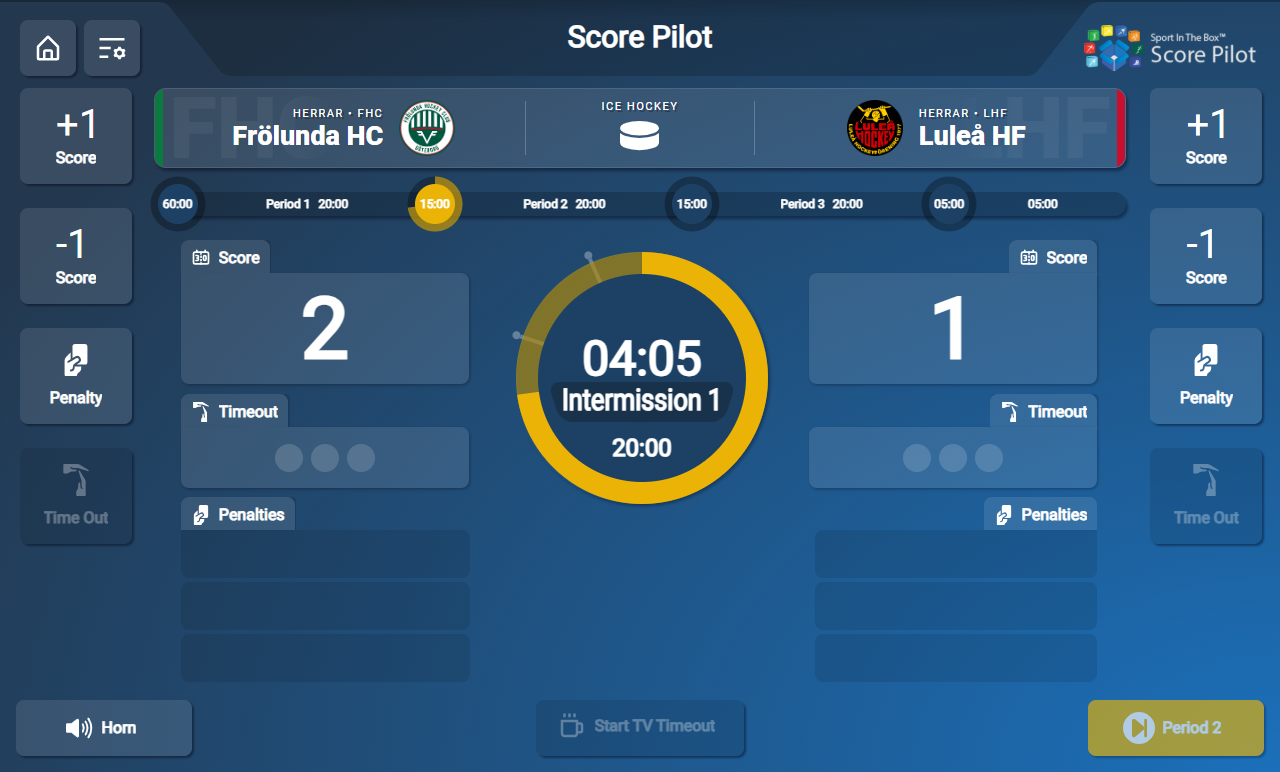
While a pause runs, the clock is yellow and the button in the bottom right corner shows the next period. Press it to go straight to that period. A pause can be stopped with the physical Stop button and started again with Start on the screen or the physical Start button.
Horns set before the end of a pause are marked on the clock ring. A horn sounds when the running clock passes its mark. If the time is changed past a horn, that horn does not sound. See Horn Settings during pauses.
Manual pause
Section titled “Manual pause”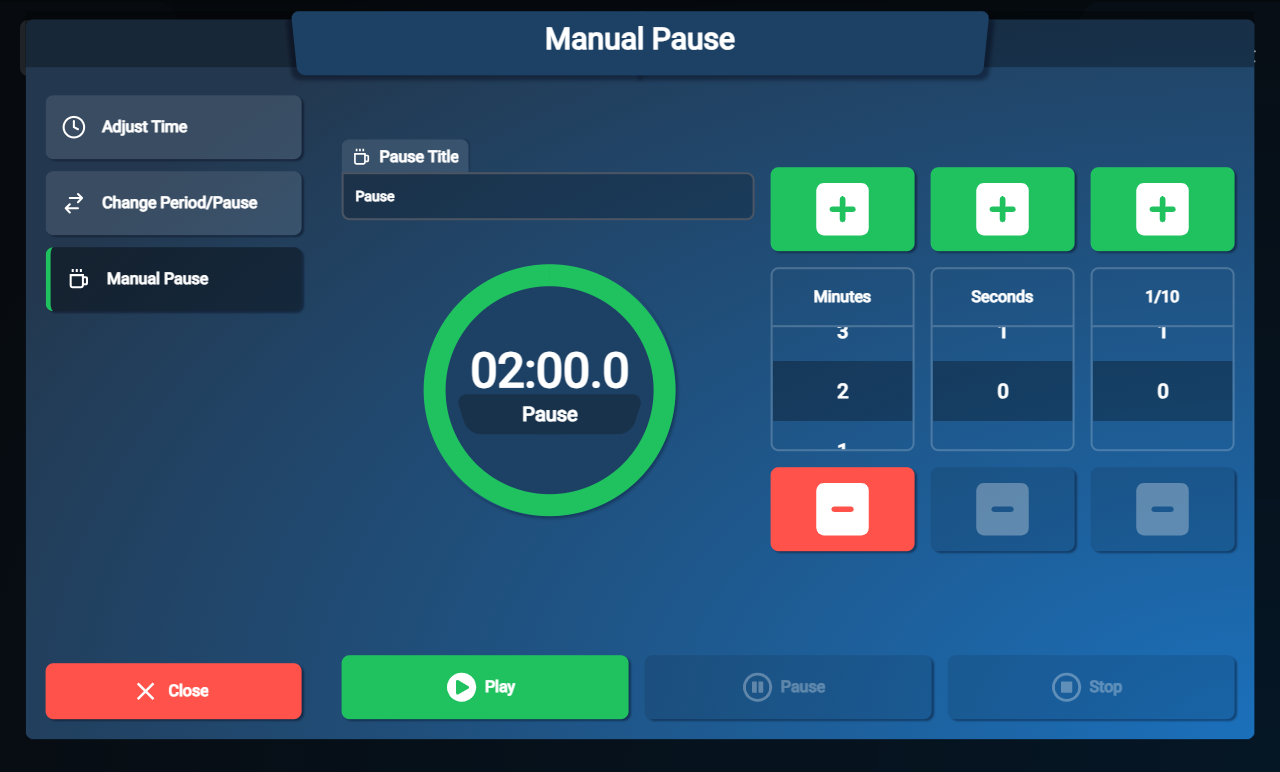
Press the game clock and choose Manual Pause to start a pause that is not part of the timeline. The title is filled in as Pause and is shown on the scoreboard; change it if needed. Set Minutes, Seconds and 1/10 and press Play. The game clock stops while the manual pause runs. Use Pause to hold it and Stop to end it.
Power break
Section titled “Power break”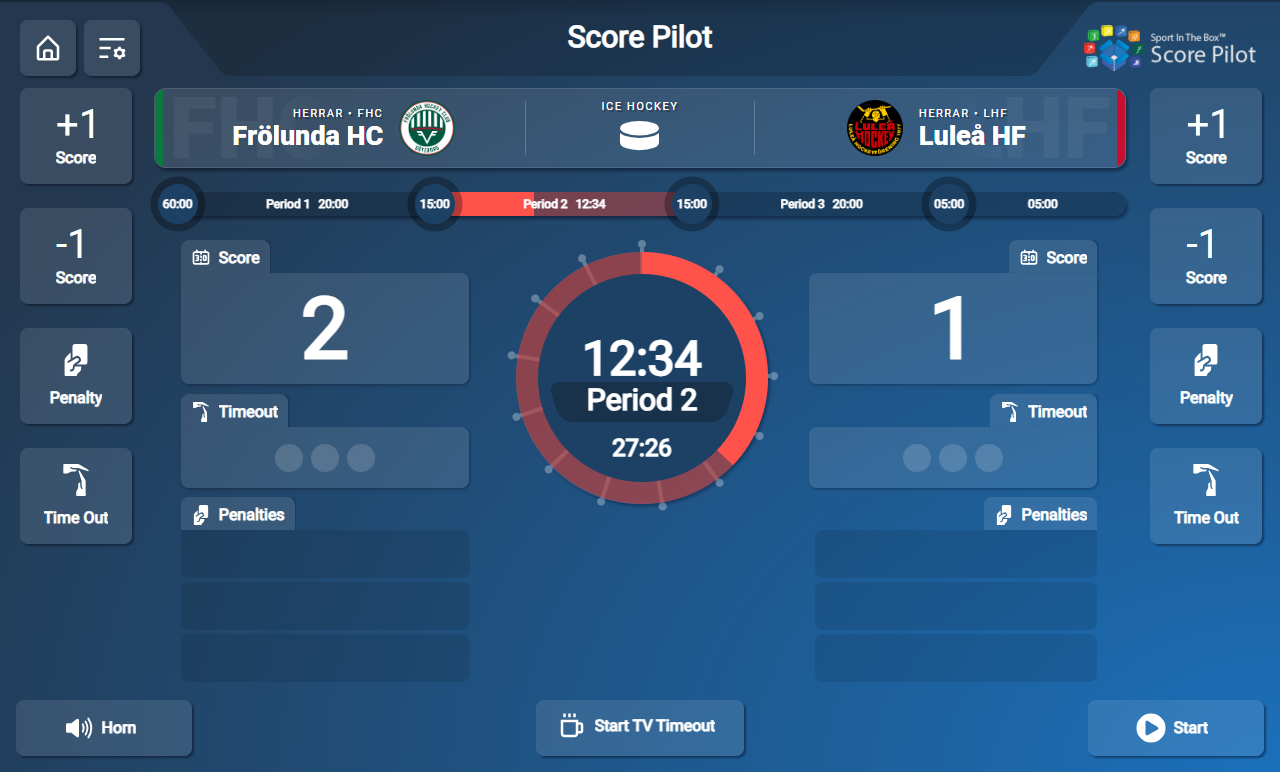
In ice hockey, when Use power breaks is turned on in Game Settings, a power break button is shown at the bottom of the Game Screen. It is labelled Start and the power break title, for example Start TV Timeout. It can be used when the game clock is stopped during a period. The button pulses when the time set in Highlight button after (min) has passed, to remind the operator that a power break is due. Press the button again to stop the power break.
Players and numbers
Section titled “Players and numbers”If a score, foul, penalty or card is given to a number that no player in the team has, it is saved on the number only and no player is created. The number is listed with the team’s players during the game. Giving a score, foul, penalty or card to an inactive player marks the player as Active.