

Football
Game screen
Section titled “Game screen”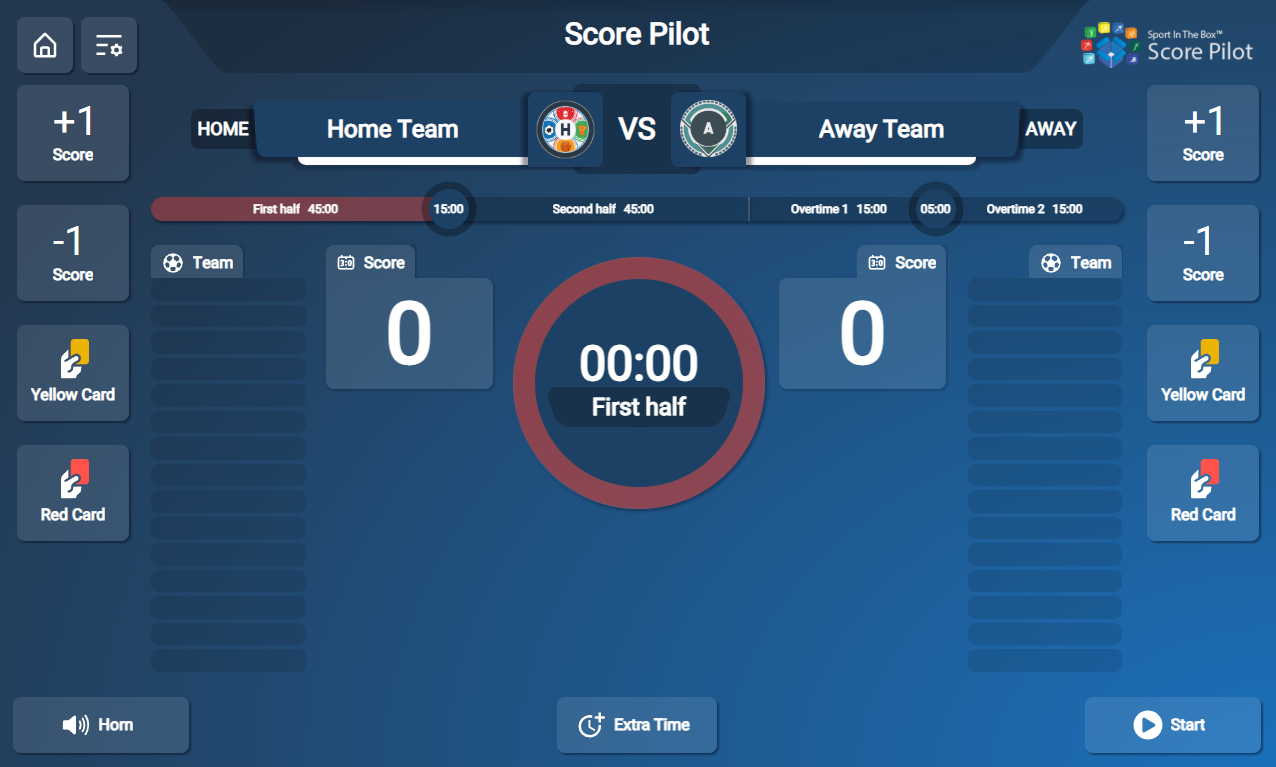
Player cards
Section titled “Player cards”Football includes a card system for managing disciplinary actions during the match. Two quick action buttons are available on the Game Screen for each team: Yellow Card and Red Card. These buttons are used to register cards given to players
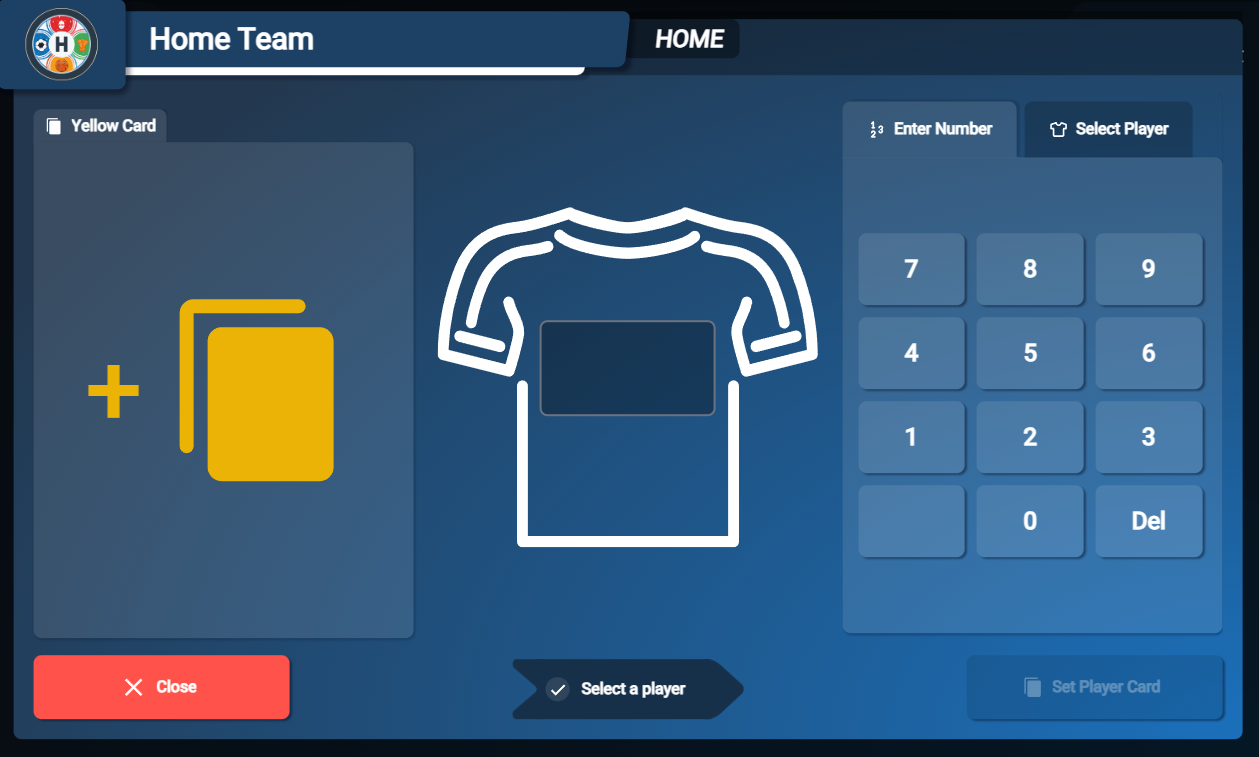
When a card button is pressed, a modal window opens. A player can be identified by:
Entering the player’s number using the numeric keypad, or
Selecting the player directly from the list of players registered for the team.
Once the card is confirmed, it is added to the player.
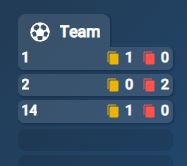
The number of yellow or red cards assigned to each player is displayed in the team list on the Game Screen, providing an overview of all disciplinary actions during the match.
Extra Time
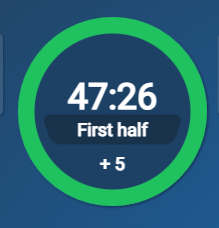
Section titled “Extra Time”Extra time can be added manually during a match by pressing the Extra Time button on the Game Screen.
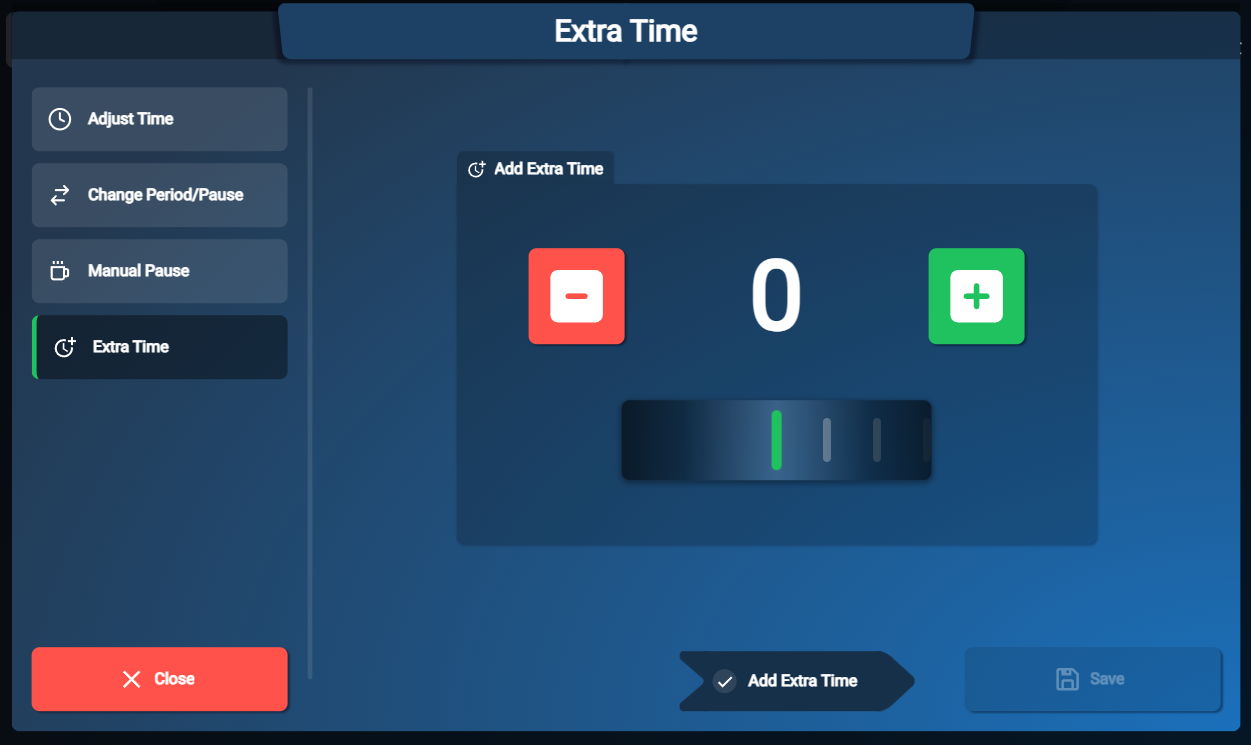
Pressing the button opens a modal window where the number of additional minutes can be entered. Once confirmed, the extra time is displayed on the match clock.
Extra time is automatically cleared when moving to next period.
To clear it manually, change it to 0.
Settings
Section titled “Settings”Game Settings
Section titled “Game Settings”In Game Settings all settings for game time, pause, and score can be edited.
Sound horn signal at end of period – Enable or disable playing a horn sound on the XLR and sending a signal to play horn on all outputs. This horn will only sound when the game time ends.
Use stoppage time – Activate to allow game time to continue running even after the period has ended. Can be used to compensate for lost playing minutes due to injuries, substitutions, or other significant interruptions.
Start next period time from end of previous – When enabled, this setting makes the game time get displayed as a total of the elapsed time during each period. If the first period is 45 minutes, the second period will start from 45 minutes and count up from that, so after 10 minutes in the second period the clock will say 55 minutes.

Pause counting down - Enabled makes the pause clocks to count down to zero, disable to start pause at zero and count up
AutoStart pause at end of period – When enabled, if the current period is followed by a pause, the pause will start running when the period ends. The pause time will be visible in the game screen on the button to switch to the pause. When switching, the pause clock will be in the center of the game screen, with the elapsed time preserved.
Horns during pauses are set for each pause under Period/Pause, see Horn Settings during pauses.

Select player on score – This option makes the user need to select a player when adding or removing a score for the team.