

Data Outputs
Set up data outputs for sending data from the Score Pilot console to scoreboards.
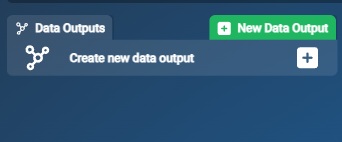
Click on new to add one or select one in the list and change settings to the right.
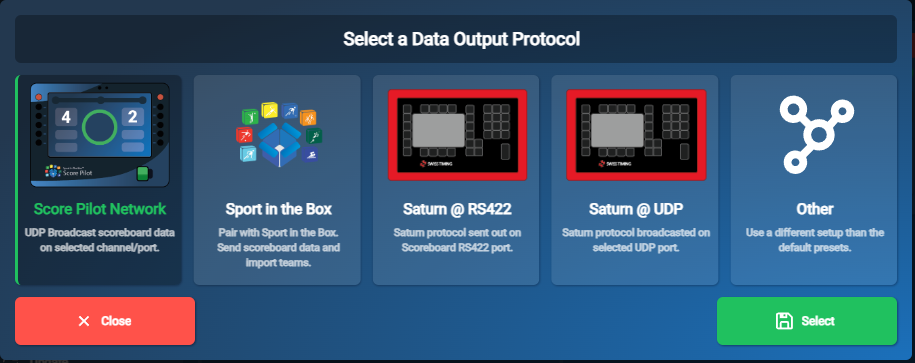
Score Pilot Network
Section titled “Score Pilot Network”Broadcasting Scoreboard data on UDP using the Score Pilot protocol, on selected channel/port. No setup is needed, other than selecting which channel to broadcast.
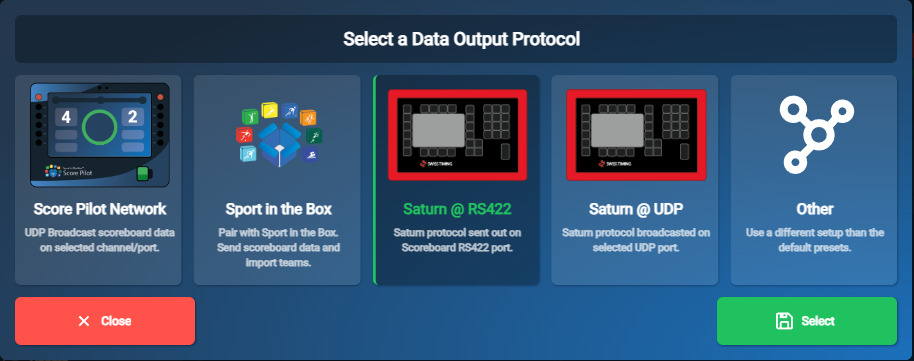
Saturn @ RS422
Section titled “Saturn @ RS422”Sending Saturn protocol on Scoreboard RS422 port.
For Saturn data outputs it is possible to enable or disable Send manual pause instead of game time. This option overwrites game time sent to the Saturn outputs if a manual pause or power break is activated.
Brightness sets the scoreboard brightness for the output: Auto, or a fixed level from 1/4 to 4/4.
Saturn @ UDP
Section titled “Saturn @ UDP”Broadcasting Saturn protocol on selected UDP port.
To change port for broadcasting, change the port setting.
For Saturn data outputs it is possible to enable or disable Send manual pause instead of game time. This option overwrites game time sent to the Saturn outputs if a manual pause or power break is activated.
Brightness sets the scoreboard brightness for the output: Auto, or a fixed level from 1/4 to 4/4.
Select Other if none of the default outputs are applicable for the situation.
Choosing Other makes it possible to select from all the available protocols, with corresponding available types (websocket, serial, udp broadcast), as well as setting all settings required.
Sport in the Box
Section titled “Sport in the Box”Pair with Sport in the Box to send Scoreboard data to templates in Sport in the Box, also used for importing teams from Sport in the Box to use in Score Pilot games.
Need to be paired with Sport in the Box to work.
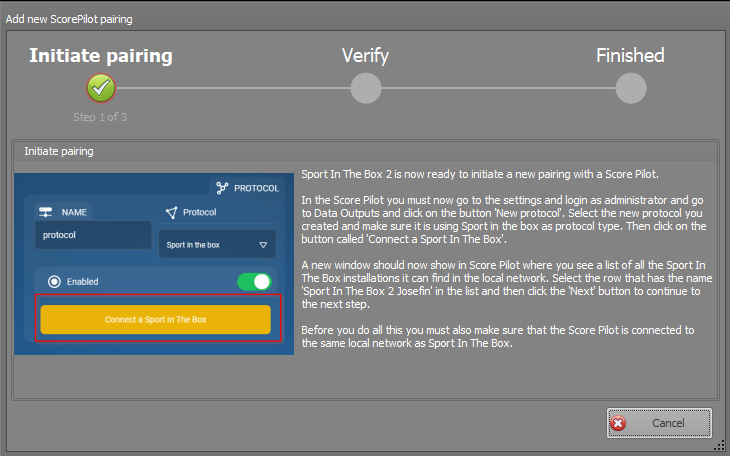
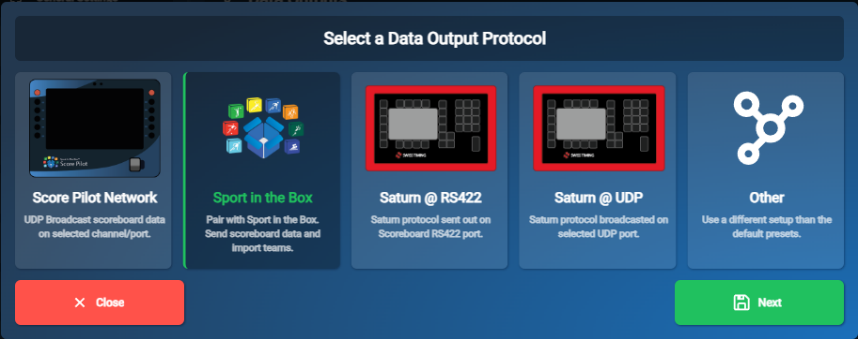 Select Sport in the Box as Data output in Score Pilot.
-
In Sport in the Box: Click on Edit Timer -> Select Console type “ScorePilot” -> Click on Edit connections and type in pin code.
Add new Score Pilot by clicking Add+.
Pairing should now be initiated by Sport in the Box. -
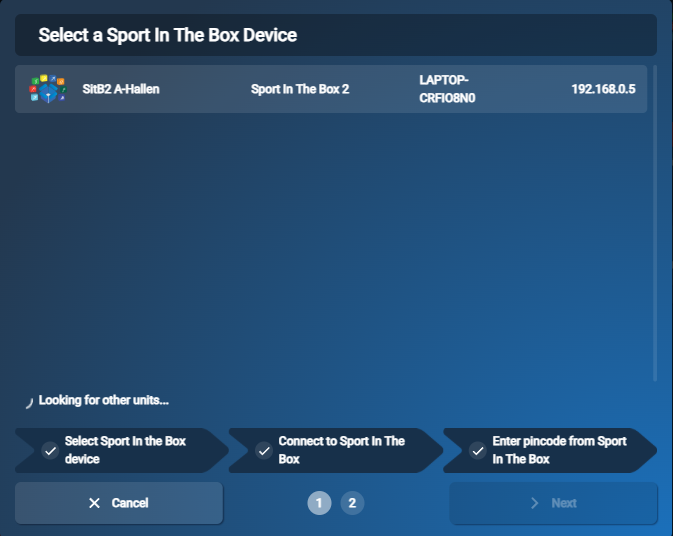 Select your Sport in the Box unit to pair with, in Score Pilot.
-
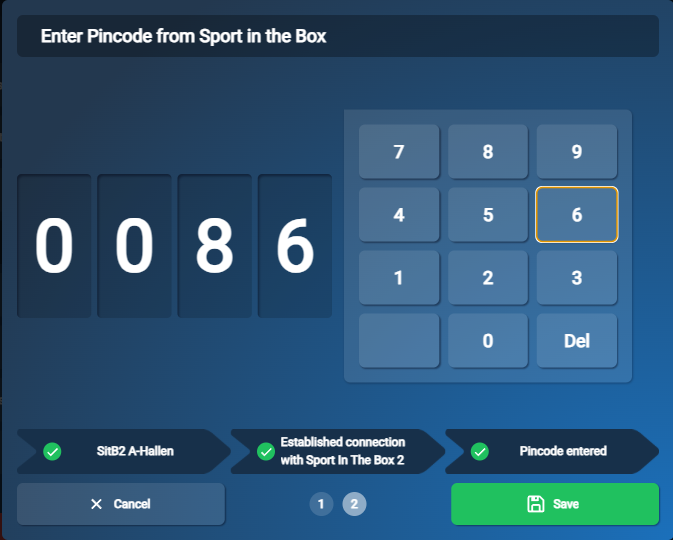
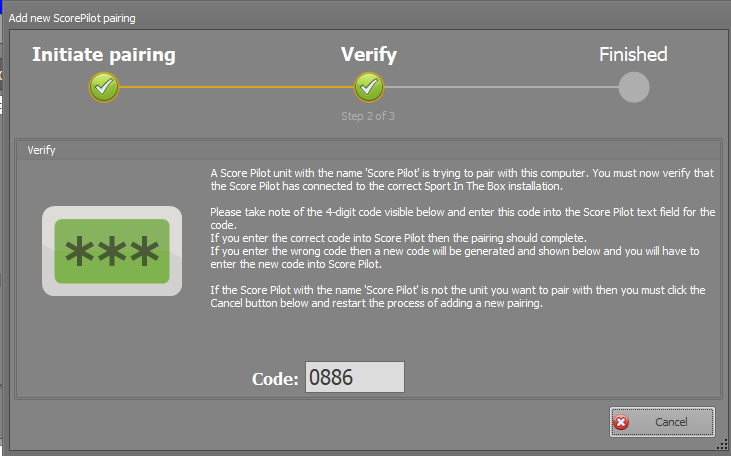 The Sport in the Box pairing guide will now show a 4 number pin code.
Type that pin in the pairing guide in Score Pilot and click Save.
-
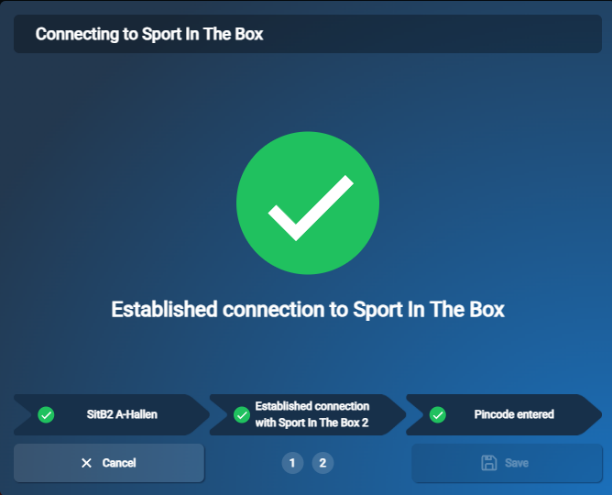
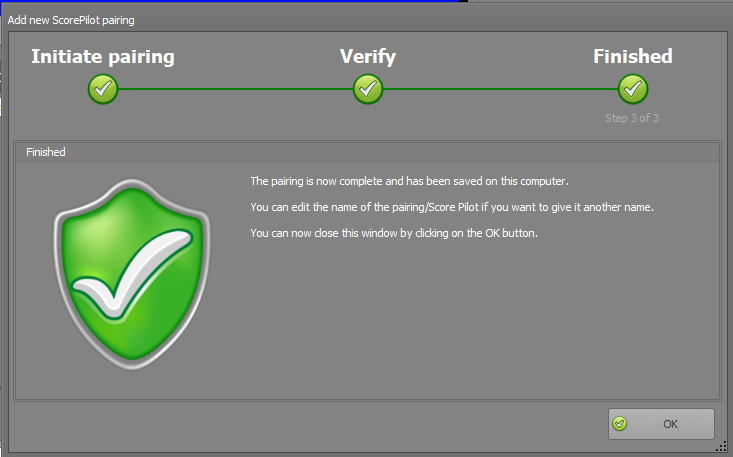 If the correct pin code is entered, both Sport in the Box and Score Pilot will show a confirmation message. Close the Edit Timer menu in Sport in the Box by clicking “OK” and then the Sport in the Box should start receiving data from Score Pilot.
In Score Pilot,
the status on the newly paired data output should say “Connected”