

During a game
What you do on the Game Screen while a game runs. The buttons on each side of the screen add scores, penalties and timeouts for each team; each has a matching physical button on the console. Actions that only some sports have, such as cards, fouls and exclusions, are described on the page for that sport under Sports. For every part of the screen, see The game screen.
Teams and players
Section titled “Teams and players”Tap a team at the top of the Game Screen to edit its name, logo and players.
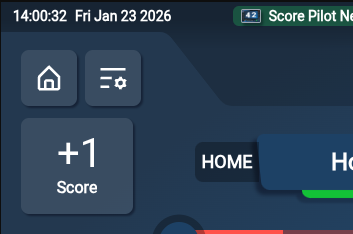
Press +1 to add a score to a team.
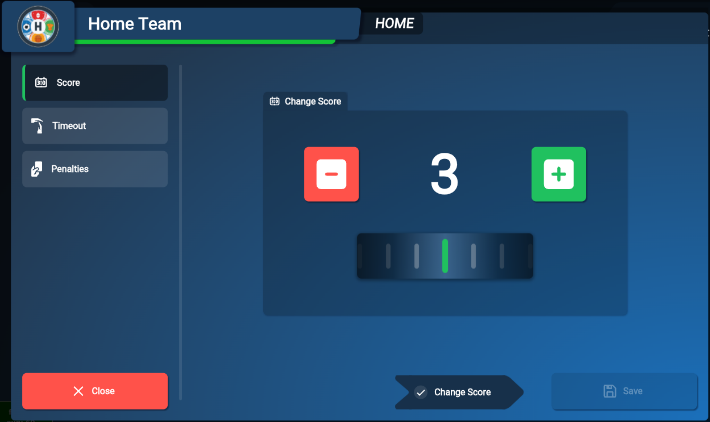
Press the score box to change the score: use the minus and plus buttons or the scroll wheel, then press Save.
Penalties
Section titled “Penalties”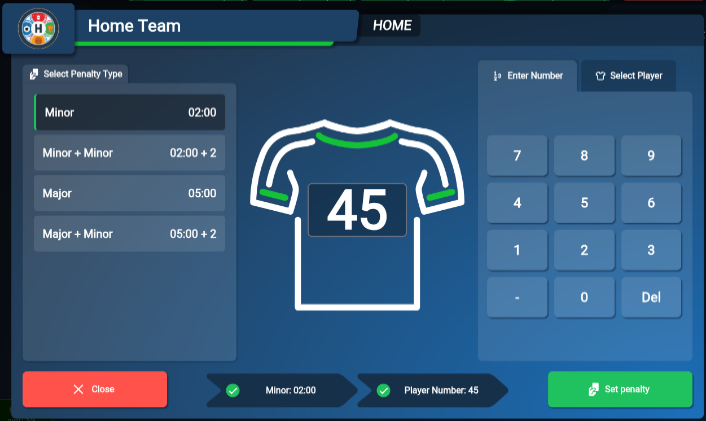
To add a penalty:
- Press the penalty button.
- Select the penalty type or time.
- Enter the player number with the numpad or select the player in the list. A number that no player in the team has is saved on the number only; no new player is created.
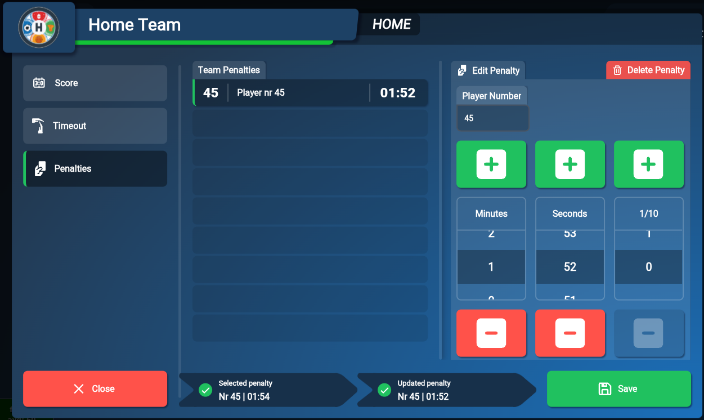
To change or delete a penalty, press the penalty:
- Use the quick buttons to change the penalty time.
- Press the player number field to change the player number.
- Press Delete Penalty and confirm to delete it.
Timeouts
Section titled “Timeouts”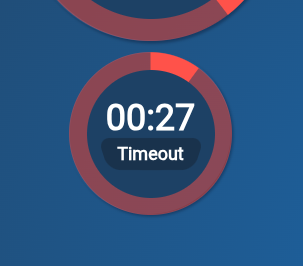
- Press the timeout button to start a timeout.
- To cancel a running timeout, start the game clock and confirm in the pop-up that the timeout should stop.
- To correct how many timeouts a team has taken, press the timeout indicator, adjust with the quick buttons and press Save.
Timeouts start again from zero at half time in basketball, at each new half in futsal and when Next Set is pressed in volleyball. The number of timeouts and their length are set on the Timeouts tab of the game.
Game clock
Section titled “Game clock”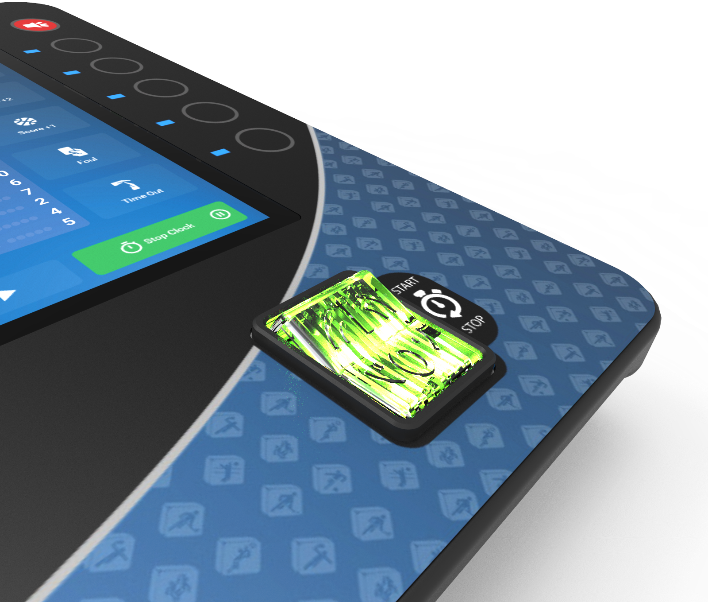
Start and stop the clock with the start/stop switch or the button on the screen: up starts, down stops. The switch shows the state of the clock:
- Green: the clock is running.
- Red: the clock is stopped.
- Yellow: a pause is running.
During pauses, breaks and warm-ups, the clock can be stopped with the physical Stop button (down) or an external start/stop button. A stopped pause turns the switch red; starting it again, with the physical button or Start on the screen, turns it yellow.
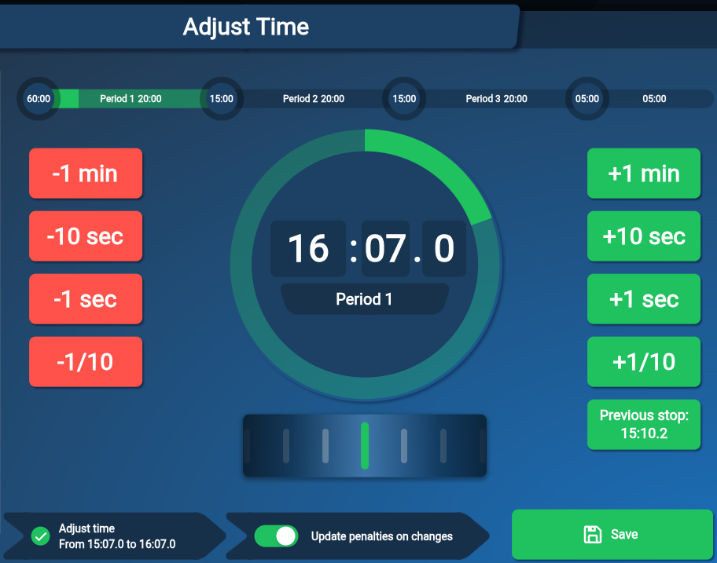
To change the time, press the game clock. See Adjusting the game time.
Periods and overtime
Section titled “Periods and overtime”When a period or pause ends, the start/stop button in the bottom right corner shows the next one. Press it to go on. While a pause runs, the button shows the name of the next period; press it to go straight to that period. After the last period, the button shows Add Overtime, which adds an overtime period to the game.
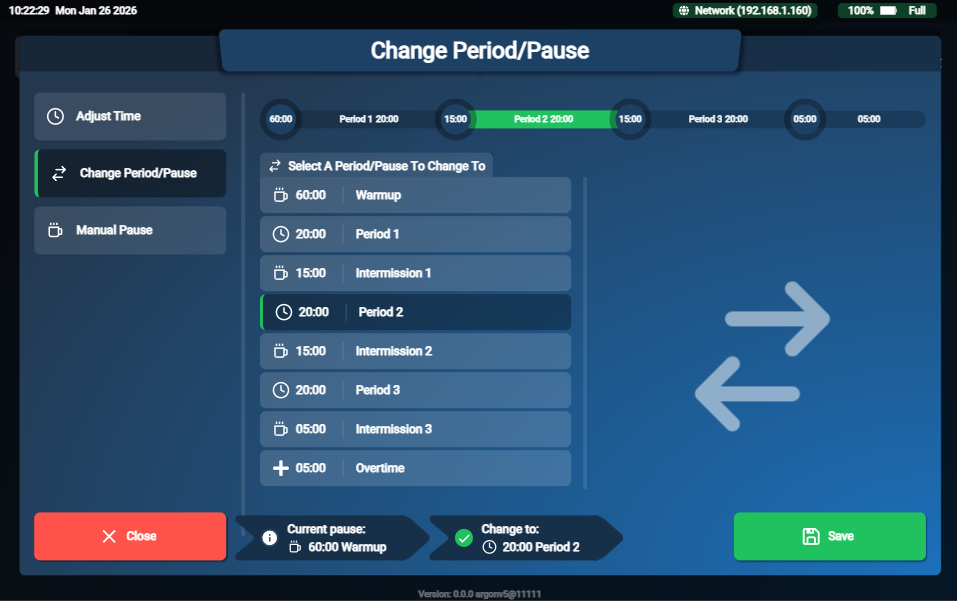
To move to another period or pause by hand, press the timeline at the top, select the period or pause and press Save.
Leaving the Game Screen
Section titled “Leaving the Game Screen”The Home button takes you to the Home Screen; the game is not cancelled. To return, press Resume on the live game at the top, or on the game in the games list. If the sport configuration has a PIN code, it must be entered to return to the game.