

Floorball
Game screen
Section titled “Game screen”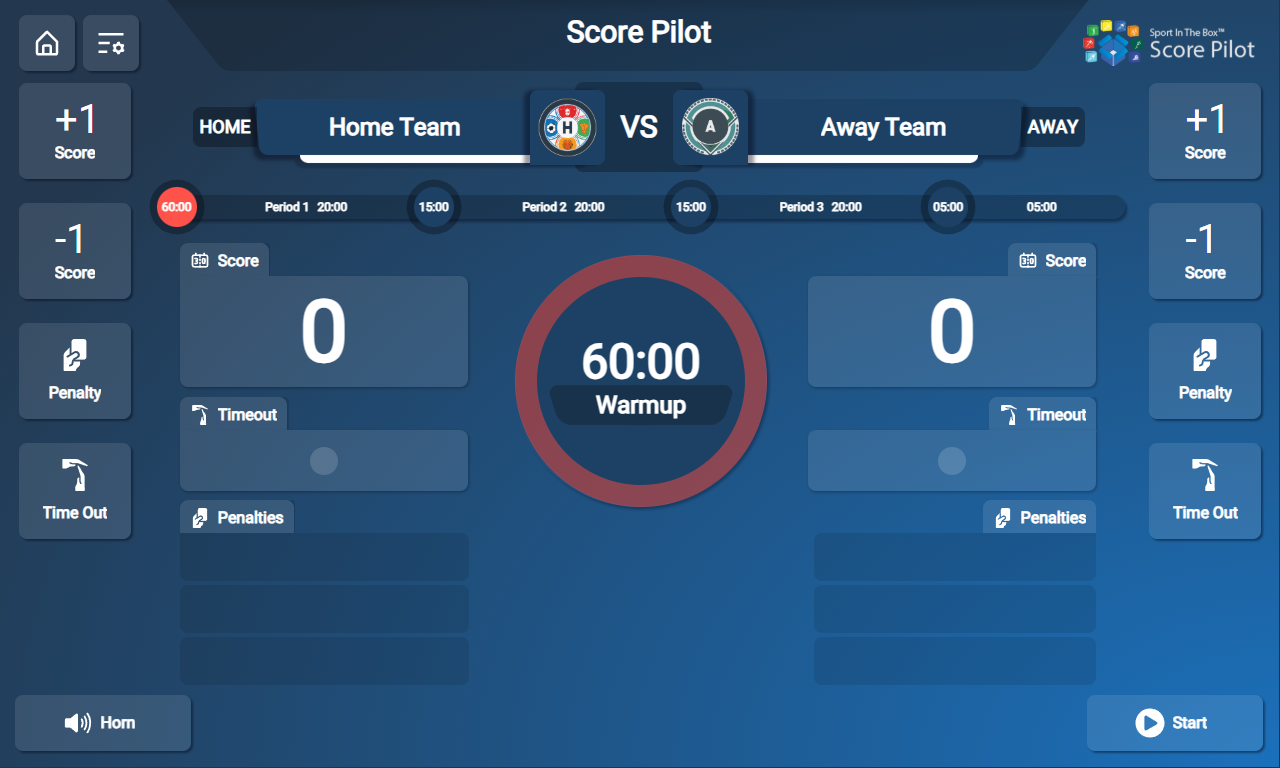
In the Floorball game screen, quick buttons for +1 / -1 Score, Penalties and Time Out are available.
| Action | Description |
|---|---|
 | Increases the score for the selected team. The left side is for the home team, and the right side is for the away team. If “Select player on score” is enabled in Game Settings, you must choose a player when the score increases for any team. |
 | Decreases the score for the selected team. The left side is for the home team, and the right side is for the away team. |
 | Adds a penalty to the selected team. |
 | Takes a timeout for the selected team, provided they have not used all their allowed timeouts. While the clock is running, the timeout button is disabled. |
Add new penalty
Section titled “Add new penalty”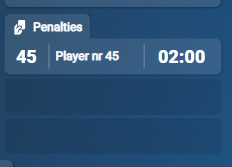
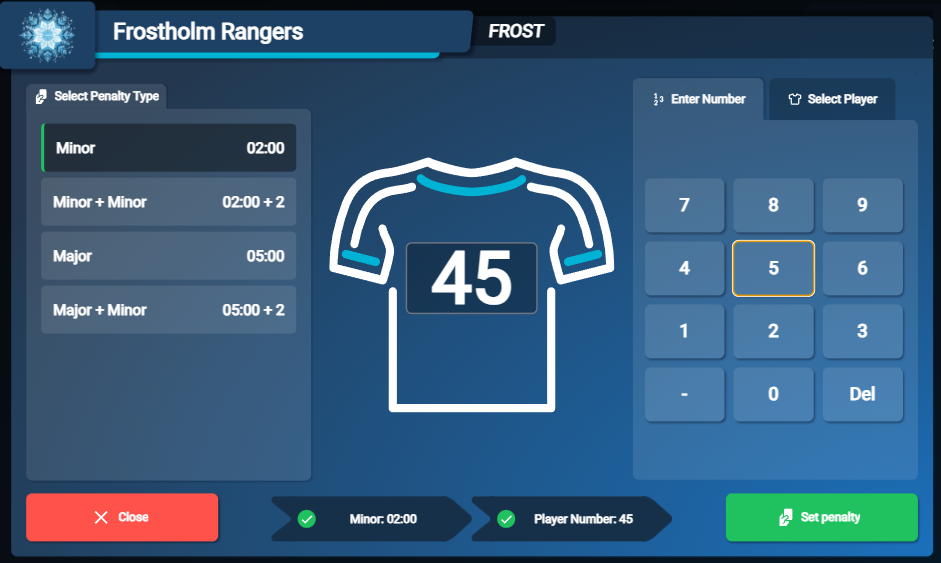
When adding a penalty, a modal opens to choose the penalty type and assign it to a player. A player can be identified by entering their number on the numeric keypad or selecting directly from the team’s registered player list.
Once the penalty is confirmed, it is added to the player and displayed under penalties in the game screen.
Settings
Section titled “Settings”Game Settings
Section titled “Game Settings”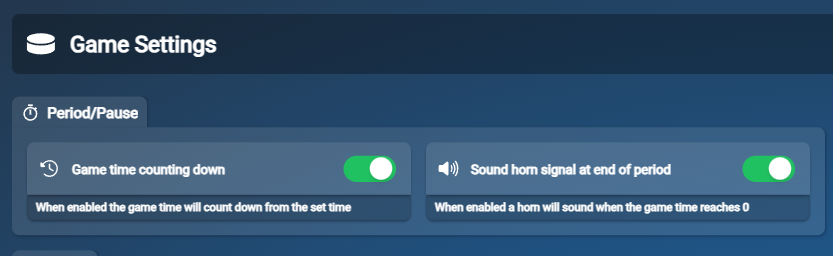
Game time counting down – Enabled makes the game time count down to zero, disable to start game time at zero and count up.
Sound horn signal at end of period – Enable or disable playing a horn sound on the XLR and sending a signal to play horn on all outputs. This horn will only sound when the game time ends.

Pause counting down - Enabled makes the pause clocks to count down to zero, disable to start pause at zero and count up
AutoStart pause at end of period – When enabled, if the current period is followed by a pause, the pause will start running when the period ends. The pause time will be visible in the game screen on the button to switch to the pause. When switching, the pause clock will be in the center of the game screen, with the elapsed time preserved.
Horns during pauses are set for each pause under Period/Pause, see Horn Settings during pauses.

Timed Buzzer Line Changes
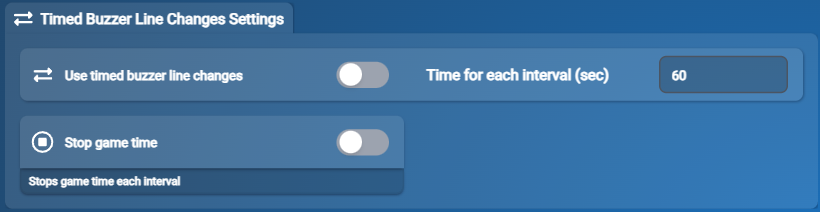
Section titled “Timed Buzzer Line Changes”Timed Buzzer Line Changes is a customized feature for Ice Hockey and Floorball games. When the setting “Use timed buzzer line changes” is enabled, the period time gets divided into equal segments to the “Time for each interval (sec)” setting. When the game time is running, a horn will sound at each of the intervals, indicating that a buzzer line change should happen. If the setting “Stop game time” is active, the game time will be automatically stopped at the buzzer interval.
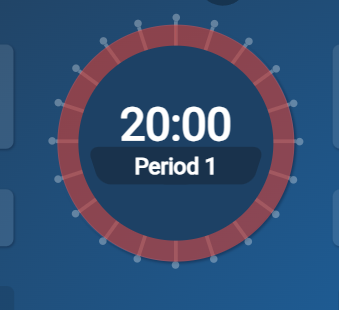
When Timed Buzzer Line Changes are active, each interval is visualized on the game clock.
Penalties
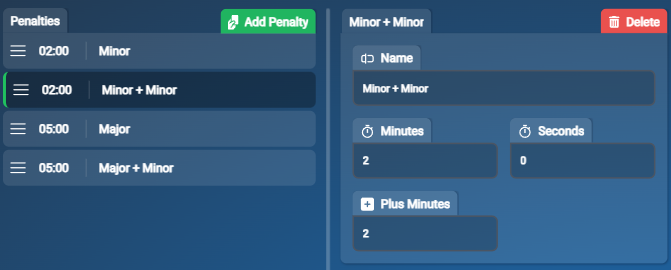
Section titled “Penalties”In Penalties, it is possible to set the default penalties, with name and time. These are later used when adding a penalty to a player.
| Setting | Description |
|---|---|
| Name | Name for the penalty. By default Floorball has Minor, Minor + Minor and Major. |
| Minutes | Setting for how long the penalty should be in minutes. Minimum value 0, maximum value 300. Will be combined with seconds to create full penalty time. |
| Seconds | Setting if penalty should be more than full minutes, for example 1 minute 30 seconds. Minimum value 0, maximum value 59. Will be combined with minutes to create full penalty time. |
| Plus Minutes | Time in minutes for a double penalty, for example Major + Minor. If 0, it counts as a single penalty. Maximum value 10. A penalty with plus minutes is displayed as the total time, but the first penalty can be removed separately. |
| Hide on scoreboard | Time hidden from the scoreboard is served by the player without shorthanding the team. For a penalty with Plus Minutes, choose None, Only Plus (hides the plus minutes) or Both (hides the full penalty). For other penalties it is an on/off switch. |