
Sport Configurations
Under Sport Configurations, all existing configurations can be viewed, and new configurations can be created or copied from existing ones. These configurations function as templates for games. For instance, if an arena hosts both junior and senior games that follow slightly different rules, separate configurations can be created for each group.
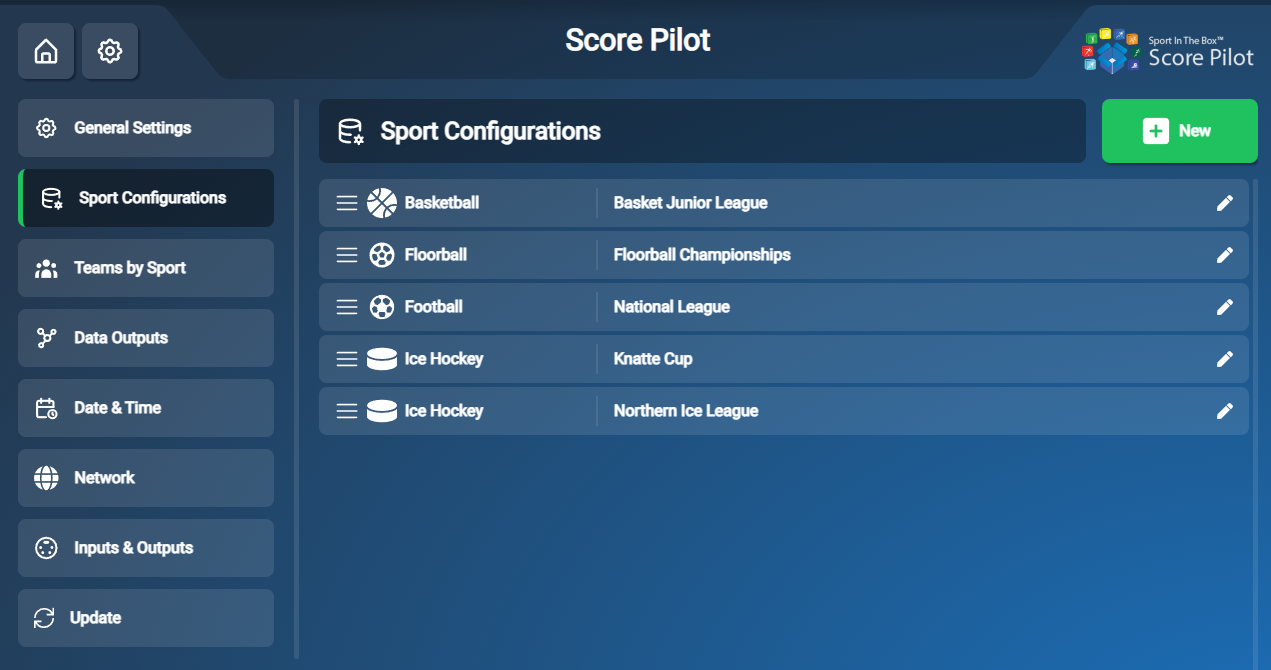
Once created, the Sport Configurations appear in the Create Game guide and are available for creating new games. This allows all settings to be predefined so that new games can be started quickly with the preset settings.
Create a new Sport Configuration
Section titled “Create a new Sport Configuration”When creating a new Sport Configuration, simply click on the New button, which opens a guided setup process.
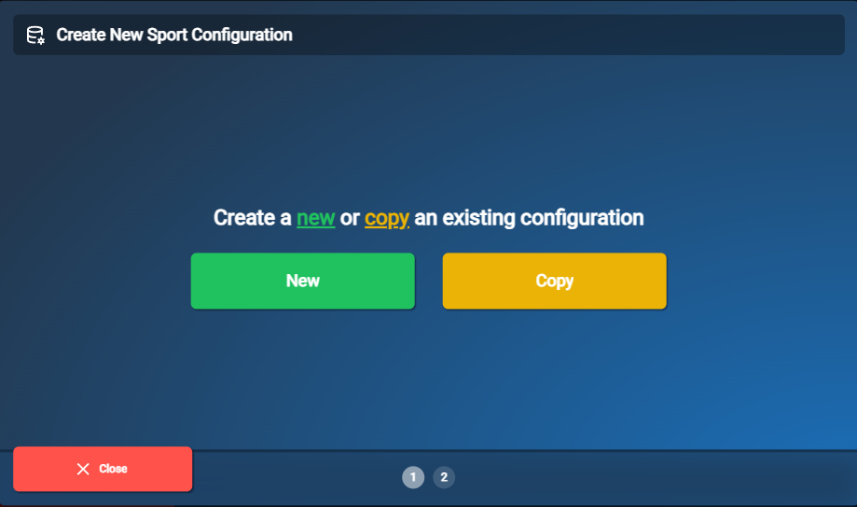
Selecting to create a new configuration will open a choice between the existing Sports, all defined with some default settings based on the international rules of each Sport.
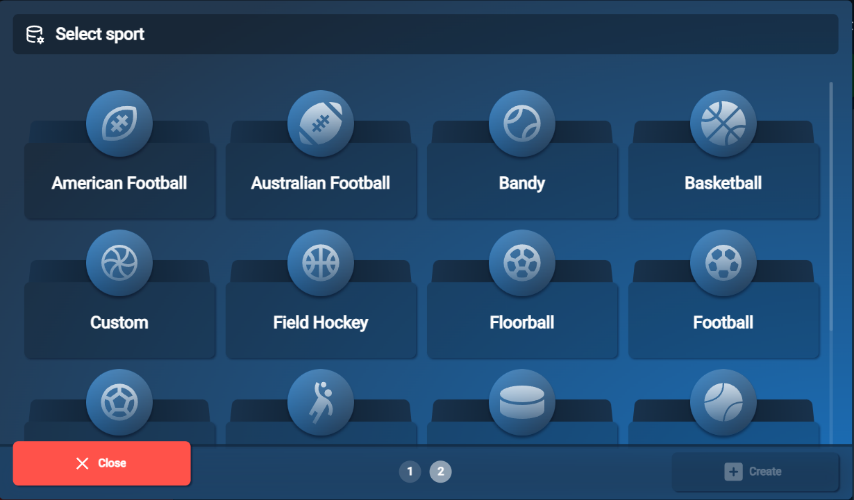
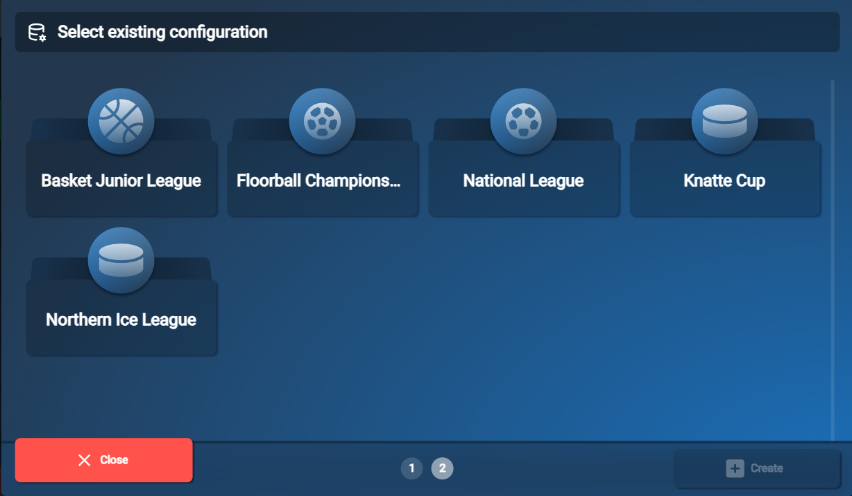
Selecting to Copy an existing configuration will open a choice between all existing sport configurations, and the selected configuration will be copied.
After creating a new Sport Configuration, it will be available in the list of Sport Configurations.
Editing a Sport configuration
Section titled “Editing a Sport configuration”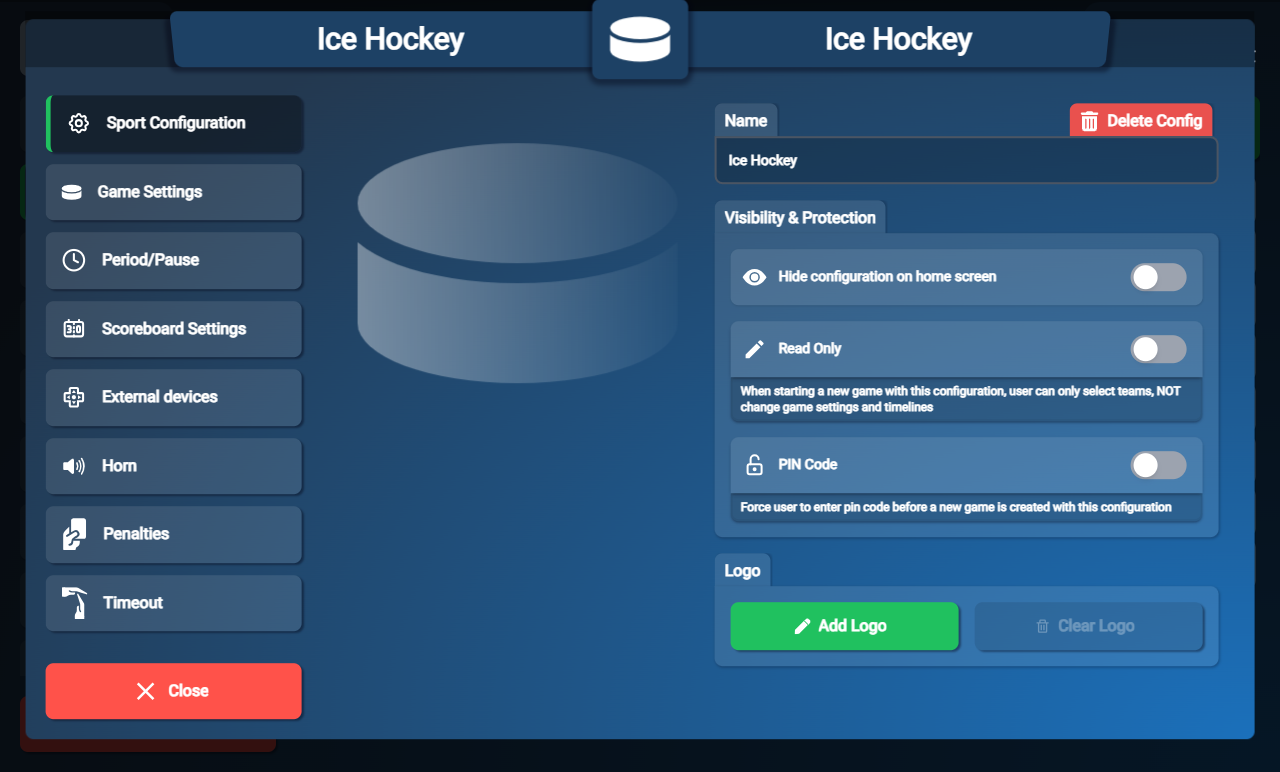
Selecting a sport configuration from the list opens its settings for editing.
Depending on the sport, different settings may be available. All sports include tabs for Sport Configuration, Game Settings, Period/Pause, Scoreboard Settings, External devices and Horn. Additional tabs that may appear for certain sports include Penalties, Exclusions, Sets, Timeout, Shot Clock, Serve Clock and Play Clock. For further reading on these tabs, see the chapter about your specific sport._Sports
To edit the order of the Sport configurations, hold the three lines on the left side of the rows and drag the selected Sport configuration to the intended position and drop it.
The sorting in the list in Sport Configurations will be the same in the Create Game guide.
Sport Configuration tab
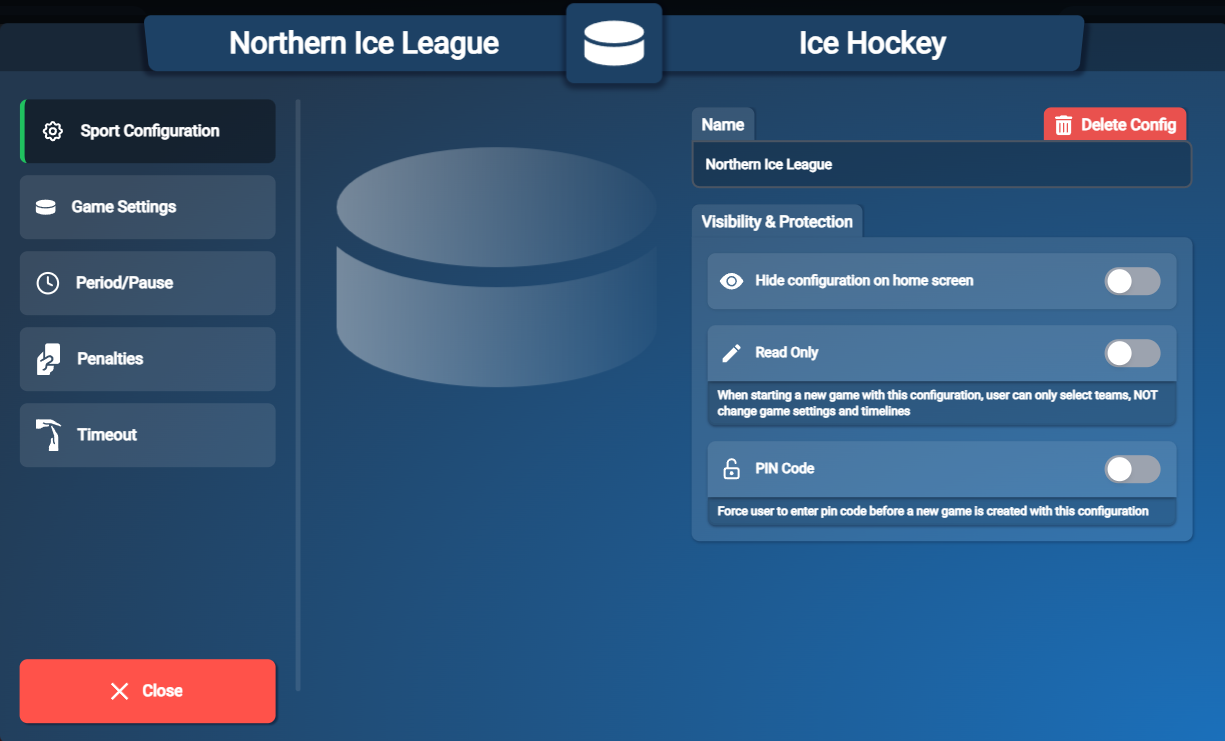
Section titled “Sport Configuration tab”The Sport Configuration tab allows for setting the configuration name and visibility options. Deleting a sport configuration is also performed from this tab.
| Setting | Description | Usefulness |
|---|---|---|
| Name | Change name of sport configuration | Name shown to the user, can be “Ice hockey junior” or “Ice hockey senior” |
| Hide configuration on home screen | Hides the configuration from the Create Game guide, preventing it from being used to create new games | Useful when a configuration is not yet finalized, or to reduce clutter in the Create Game guide without deleting any configurations |
| Read Only | Locks the settings for games created from it, locking it from getting changed from anywhere else but from the Sport Configuration setup view in Admin Settings | Useful when an administrator is responsible for configuring all sports settings, while others operate the games, as it prevents accidental changes during gameplay |
| PIN Code | Requires a PIN code to be set for the sport configuration. Anyone creating a game from this configuration must enter the PIN | Protects new games from being created with this config by unauthorized users |
| Logo | Add a logo for the configuration with Add Logo, for example a league or series logo. Clear Logo removes it. | Games created from this configuration show the logo, for example in the games list |
Game settings tab
Section titled “Game settings tab”Game Settings for a sport configuration displays the same fields as in each sport. Unique for Sport configuration Game Settings is that user can set Default Teams and disable or enable Quick start game.
Default Teams are required to make Quick start game work. Deleting a default team will reset quick start to be disabled.
Horn tab
Section titled “Horn tab”The Horn tab sets the pitch and length of each horn for games created from this configuration. It works the same way as the Horn tab of a game, see Horn. Restore Defaults puts back the default horn settings.