

Creating a new game
Games are created with the Create Game guide. Press Create Game on the Home Screen to open it. The guide has three steps, and the bar at the top shows the choices made so far.
Select configuration
Section titled “Select configuration”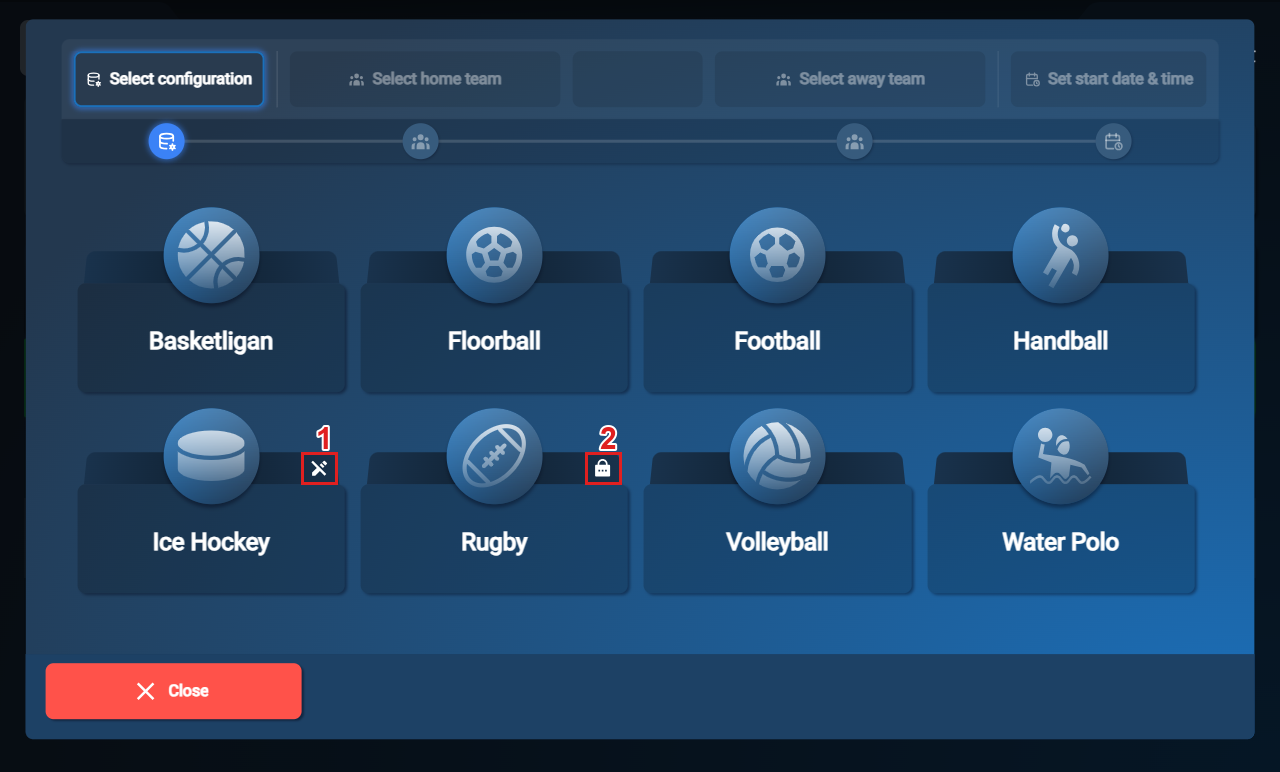
Select the sport configuration to use for the game. Icons on a card show that the configuration is read-only (1) or PIN code protected (2). For a PIN code protected configuration, the PIN code must be entered before the guide continues.
Select home and away team
Section titled “Select home and away team”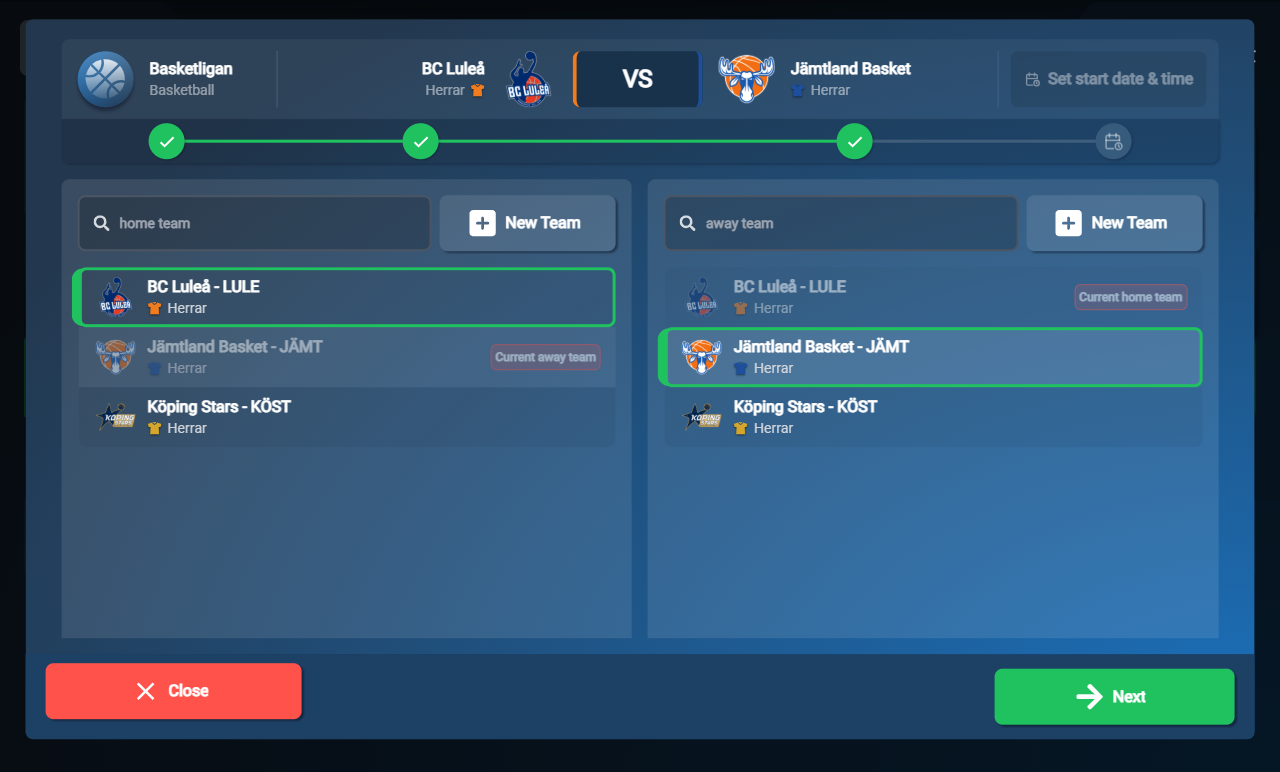
Select the home team in the left list and the away team in the right list. Use the search fields to filter the lists, or press New Team to create a team. A team that is selected on the other side is greyed out and cannot be selected twice. When Score Pilot is connected to Sport In The Box, the teams from Sport In The Box are listed as well. Press Next to continue.
If default teams are set in the sport configuration, they are already selected and the guide goes directly to the date and time step.
Set start date and time
Section titled “Set start date and time”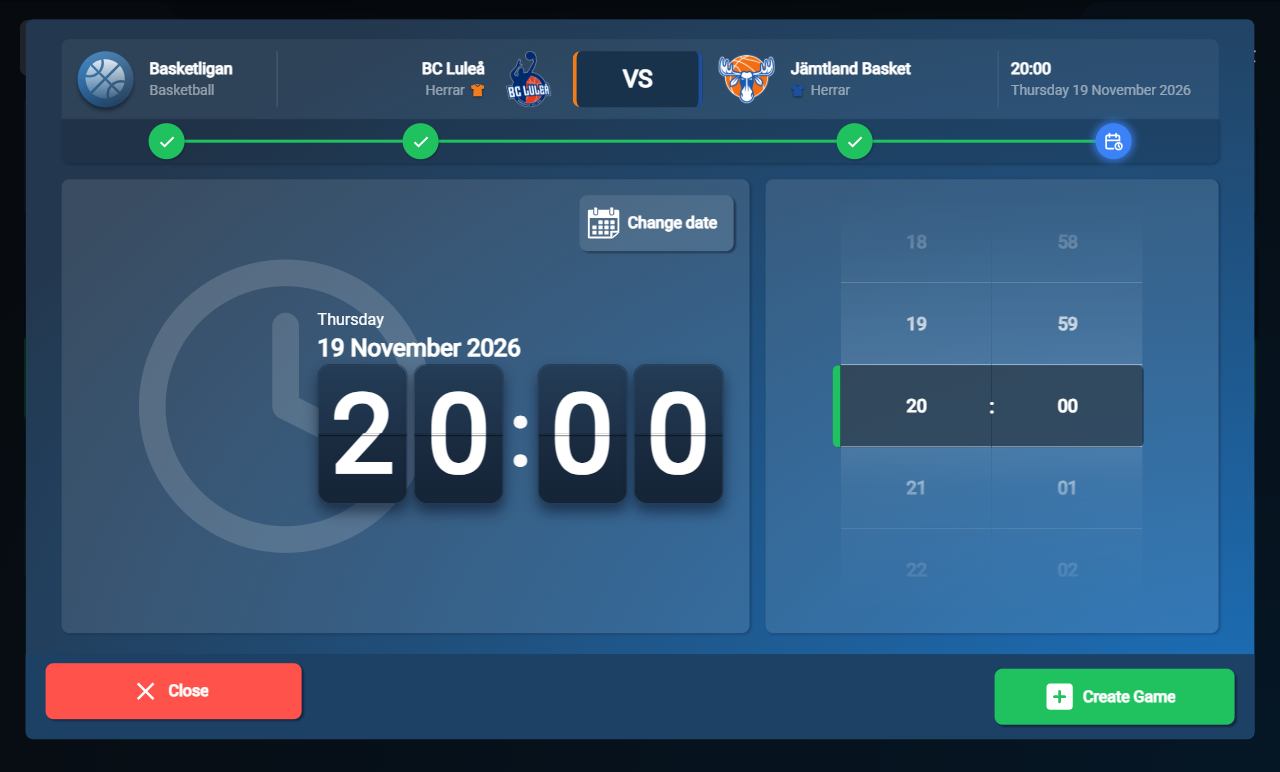
Set the start time with the hour and minute wheels. The date is the day selected on the Home Screen; press Change date to choose another day. Press Create Game to save the game.
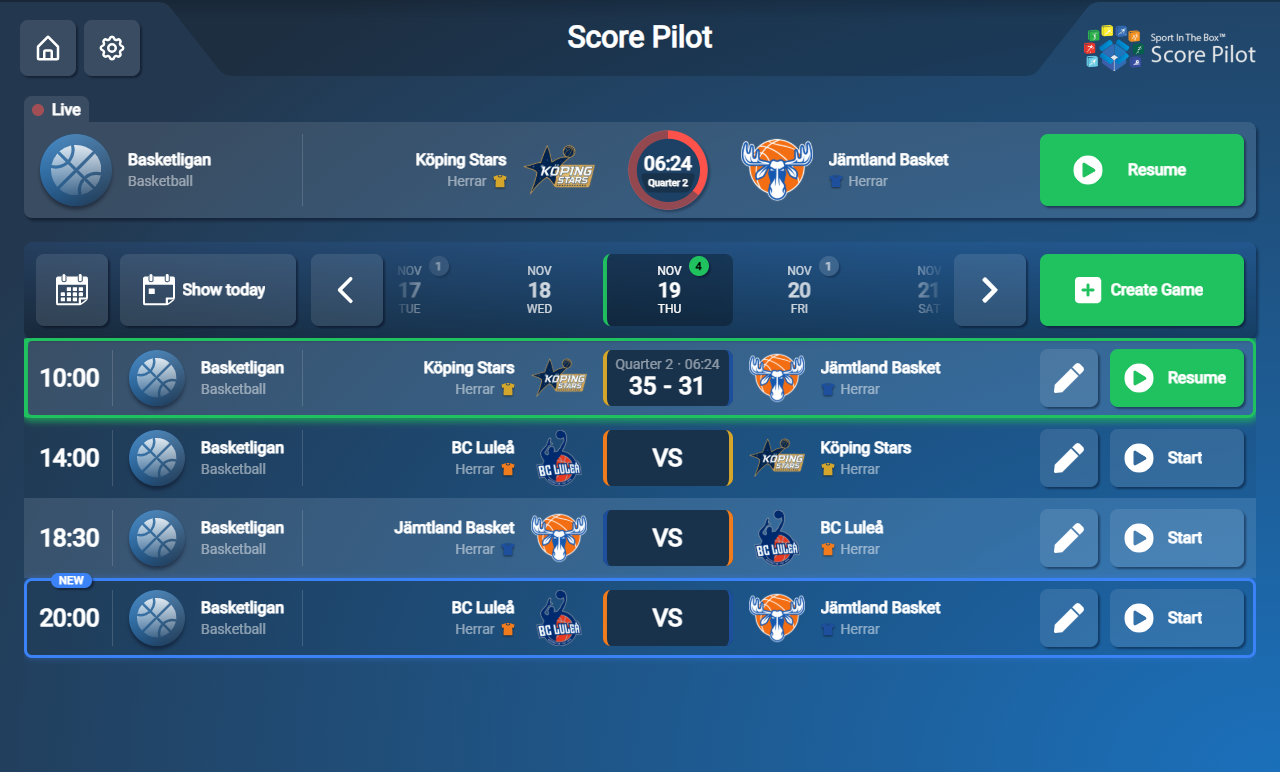
The new game is added to the games list on its date and is marked NEW. Creating a game does not start it and does not change the live game, so games can be scheduled ahead of time.
When creating a new game, a copy of the sport configuration is made to the game so all settings can be changed on demand without changing the default settings in the sport configuration.
Quick start game
Section titled “Quick start game”When creating and editing a sport configuration, it is possible to set the configuration to activate quick start. If a sport configuration is set to quick start, selecting it in the Create Game guide starts a new game straight away with the default teams and the current date and time. The team and date steps are skipped and the Game Screen opens. If another game is live, Score Pilot asks for confirmation first, see Starting a game.
Quick start game requires Default teams to be set under Game Settings, otherwise the game cannot quick start.
Starting a game
Section titled “Starting a game”Press Start on a game in the games list to start it and open the Game Screen. A game that has already been started shows Resume instead and continues where it left off.
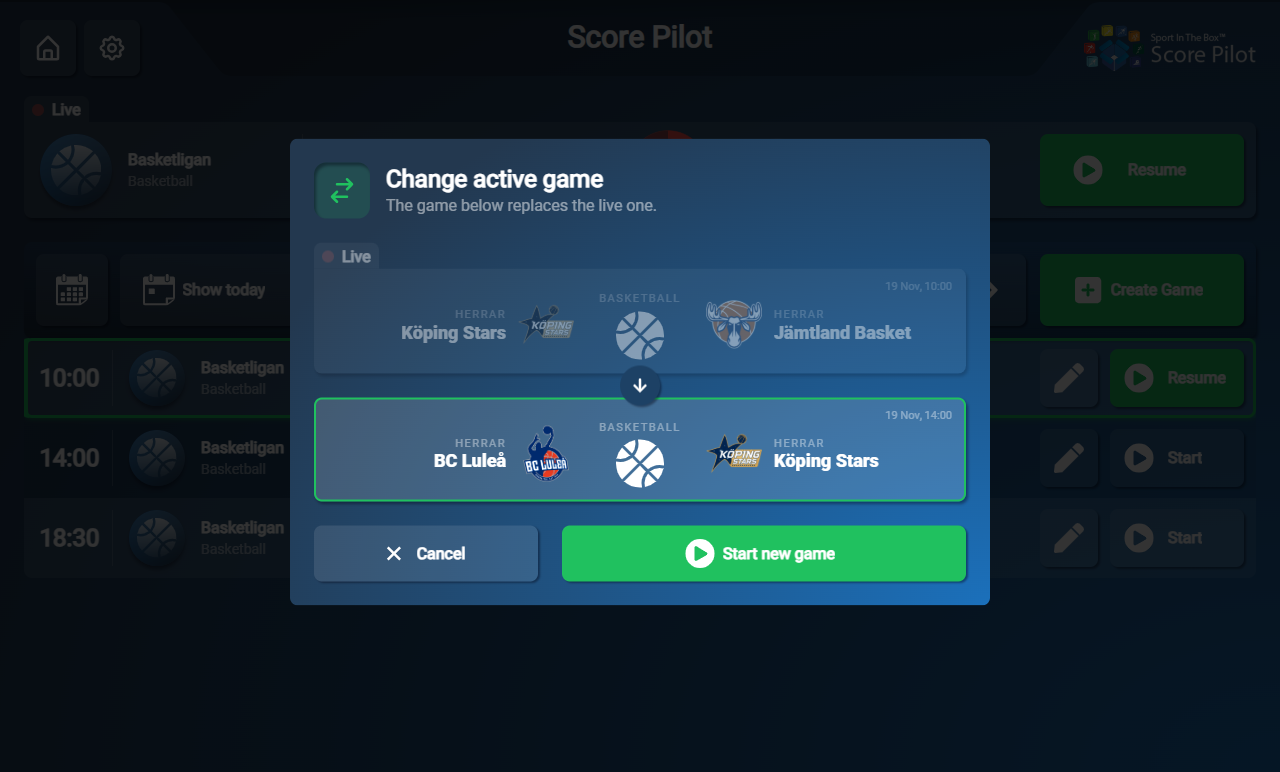
If another game is live, Score Pilot asks before replacing it. The prompt shows the live game and the game that replaces it. Press Start new game to switch, or Cancel to keep the live game. The game that is replaced keeps its score and time and can be resumed later from the games list.
If the game being started has been played before, the prompt shows Resume game and Restart game instead. Restart game clears all game data and starts the game over from the beginning; teams and settings are kept.
Starting Score Pilot on a new day
Section titled “Starting Score Pilot on a new day”When Score Pilot starts on a new day, a game that was live on an earlier day is no longer active. It keeps its last state and can be resumed from the games list on its date. Games older than one year are deleted when Score Pilot starts.