

Basketball
Game Screen
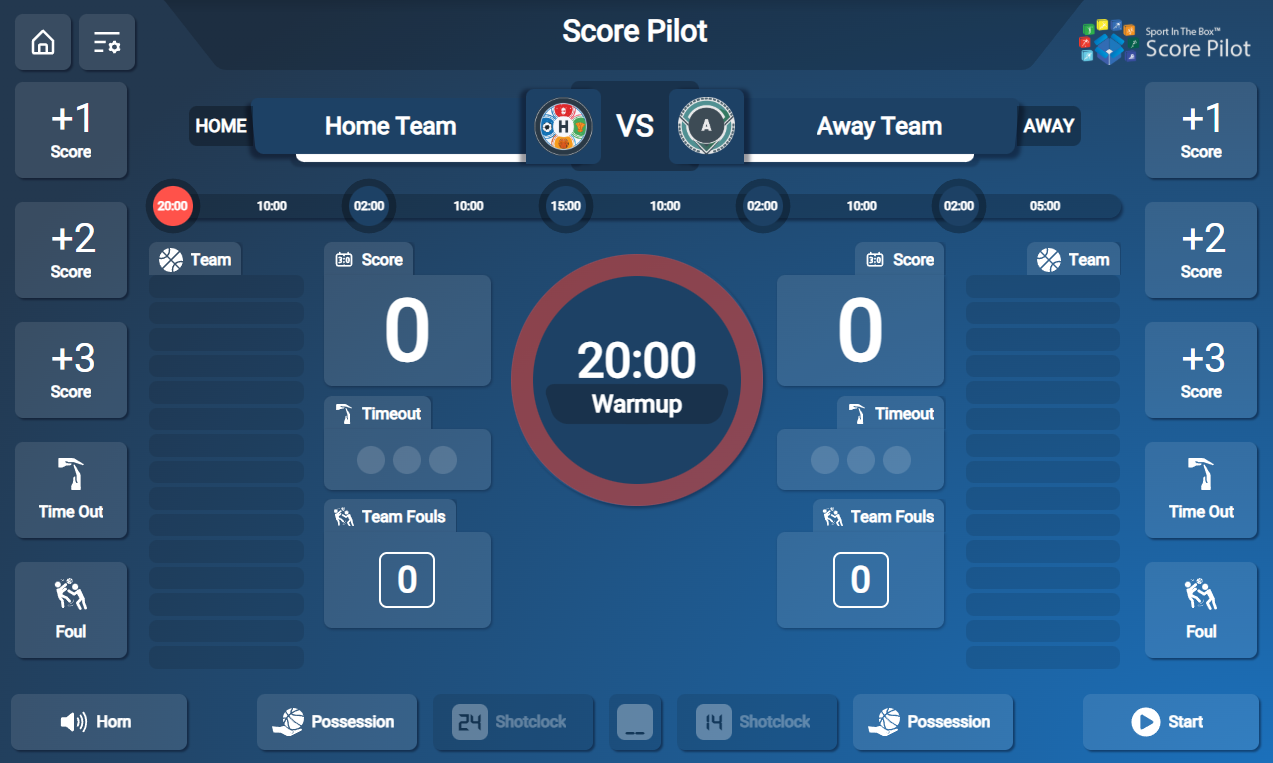
Section titled “Game Screen”In the Basketball game screen, quick buttons on each side of the team for +1/+2/+3 Score, Time Out and Fouls are available.
Buttons for Possession and Shot clock are located at the bottom of the game screen.
| Button/Function | Description |
|---|---|
| +1/ +2 / +3 Score | Increases the score for the selected team (left side for home team, right side for away team). If “Select player on score” is enabled in Game Settings, scoring requires selecting a player. |
| Time Out | Takes a timeout for the selected team, provided the team has not used all their allowed timeouts. The timeout button is disabled while the clock is running. |
| Foul | Adds a foul to the selected team. A modal opens to select the player to assign the foul to, either by entering the player’s number using the numeric keypad or selecting from the registered team player list. |
Adding a foul
Section titled “Adding a foul”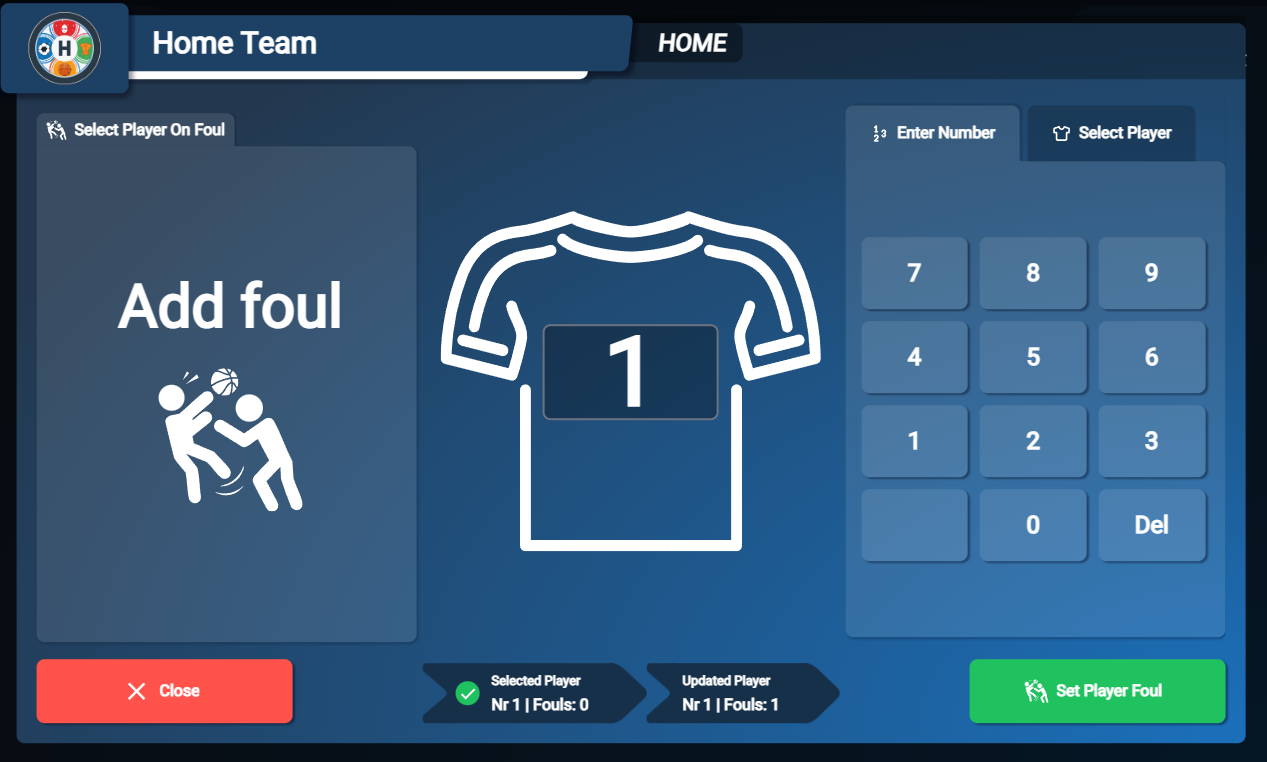
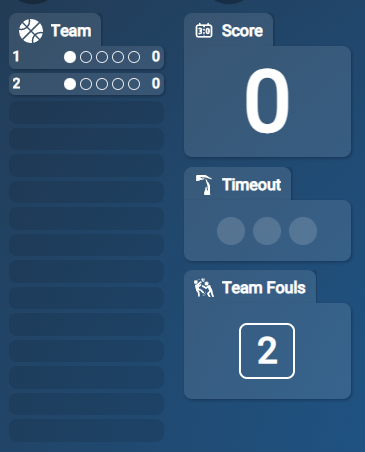
Once the foul is confirmed, it is added to the player in the team list and the total number for team fouls are updated as well.

Possession
Section titled “Possession”Assigns ball possession to the selected team.
Left side button sets possession for the home team, right side button sets possession for the away team. If the selected team already has possession and the same button is pressed again, the possession is cleared and set to none
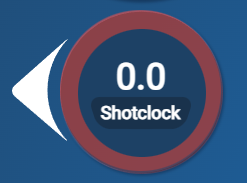
The active possession is shown on the Game Screen with an arrow next to the shot clock in the middle of the screen.
Shot clock
Section titled “Shot clock”Shot clock (Time 1) – Resets the shot clock to the primary shot clock time configured in Shot Clock settings.
Shot clock blank – Sets the shot Clock time to a blank state.
Shot clock (Time 2) – Resets the shot clock to the secondary shot clock time configured in Shot Clock settings.
Settings
Section titled “Settings”For Basketball, the available extra tabs for settings are Timeouts and Shot Clock.
Game Settings
Section titled “Game Settings”In Game Settings all settings for game time, pause, score and fouls can be edited.
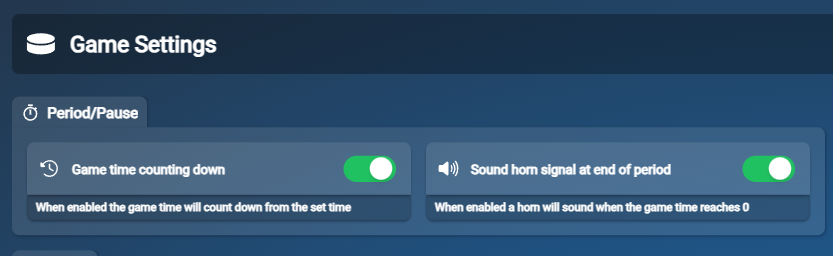
Game time counting down – Enabled makes the game time count down to zero, disable to start game time at zero and count up.
Sound horn signal at end of period – Enable or disable playing a horn sound on the XLR and sending a signal to play horn on all outputs. This horn will only sound when the game time ends.

Pause counting down - Enabled makes the pause clocks to count down to zero, disable to start pause at zero and count up
AutoStart pause at end of period – When enabled, if the current period is followed by a pause, the pause will start running when the period ends. The pause time will be visible in the game screen on the button to switch to the pause. When switching, the pause clock will be in the center of the game screen, with the elapsed time preserved.
Horns during pauses are set for each pause under Period/Pause, see Horn Settings during pauses.

Select player on score – This option makes the user need to select a player when adding or removing a score for the team.
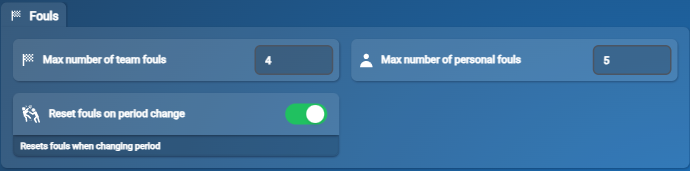
Max number of team fouls – Set the maximum number of allowed fouls for a team. The minimum value is 0, and the maximum value is 99. The number of fouls a team has will be displayed on the game screen, in a separate box under the score. The box will turn red when the maximum number of fouls has been reached. Adding a personal foul to a player will increase the number of team fouls for that team. Team fouls can also be edited separately from the personal fouls.
Max number of personal fouls – Set the maximum number of personal fouls that could be awarded to a player. The minimum is 0, and the maximum is 7. Players with personal fouls will be displayed in the list of players during the game.
Reset fouls on period change – When active, team fouls are set to 0 when a new period starts, but not when going into overtime. Personal fouls are kept.
Team timeouts are cleared at half time.