

Home Screen
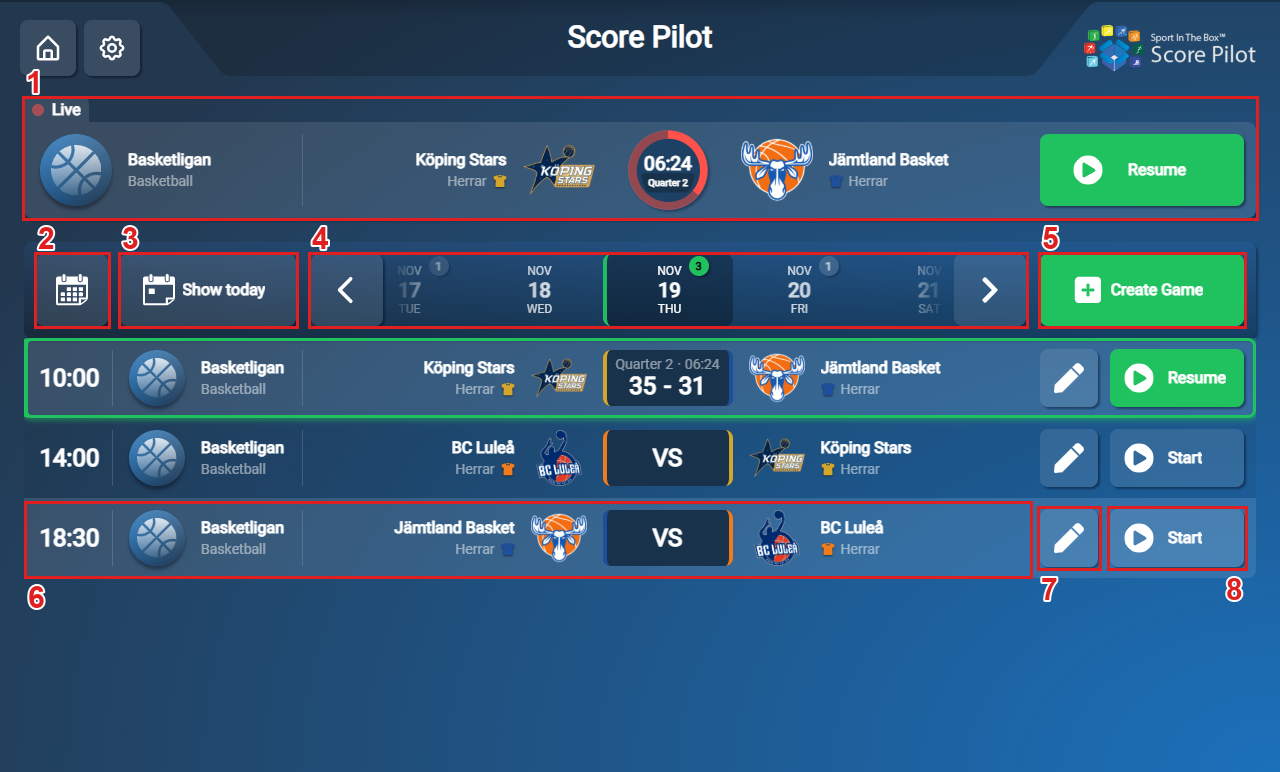
When Score Pilot starts, the Home Screen shows the games list for today when games are scheduled: every game of the day with its start time, sport configuration and home and away team. If no games are scheduled for today, a welcome screen with a link to Create Game is shown instead. The numbers in the picture are explained in the table below.
| Id | Name | Description |
|---|---|---|
| 1 | Live game | The game that is active right now, with its clock, period and teams. Press Resume to go back to the Game Screen. Shown as soon as a game has been started. |
| 2 | Calendar | Opens a calendar to go to any date. Days with games show how many games are scheduled. |
| 3 | Show today | Goes back to today. The button turns yellow when another day is shown. |
| 4 | Date picker | Shows the days around the selected date. Press a day, or the arrows, to show that day. The number on a day is how many games are scheduled. |
| 5 | Create Game | Opens the guide for creating a new game, see Creating a new game. |
| 6 | Game | Start time, sport configuration, home team and away team. The live game is outlined in green in the list and shows period, time and score. |
| 7 | Edit | Opens the game setup, where teams, date and time and all settings of the game can be changed, and the game can be restarted, ended or deleted. |
| 8 | Start / Resume | Starts the game and opens the Game Screen. A game that has already been started shows Resume and continues where it left off. |
Selecting another day shows the games scheduled for that day. Creating or editing a game does not change the live game: it is only replaced when another game is started.